


Today the new wxrks is live. It is our first full redesign since 2022, and it replaces the interface most of you have worked in every day since.
We spent months studying how the best working software keeps you focused.
The screens we had could not carry what comes next, more tools connected to the platform, more agents inside the editor, more people on more screens, without getting louder every time we added something. So we rebuilt the foundation.
The rule behind it is simple. What you are working on stays in focus. Everything else dims. A translation platform is dense by nature, and density is not the problem. Density without hierarchy is.
And with that, let's take a look at what's new.
The New wxrks Is Live, Our First Platform Redesign Since 2022
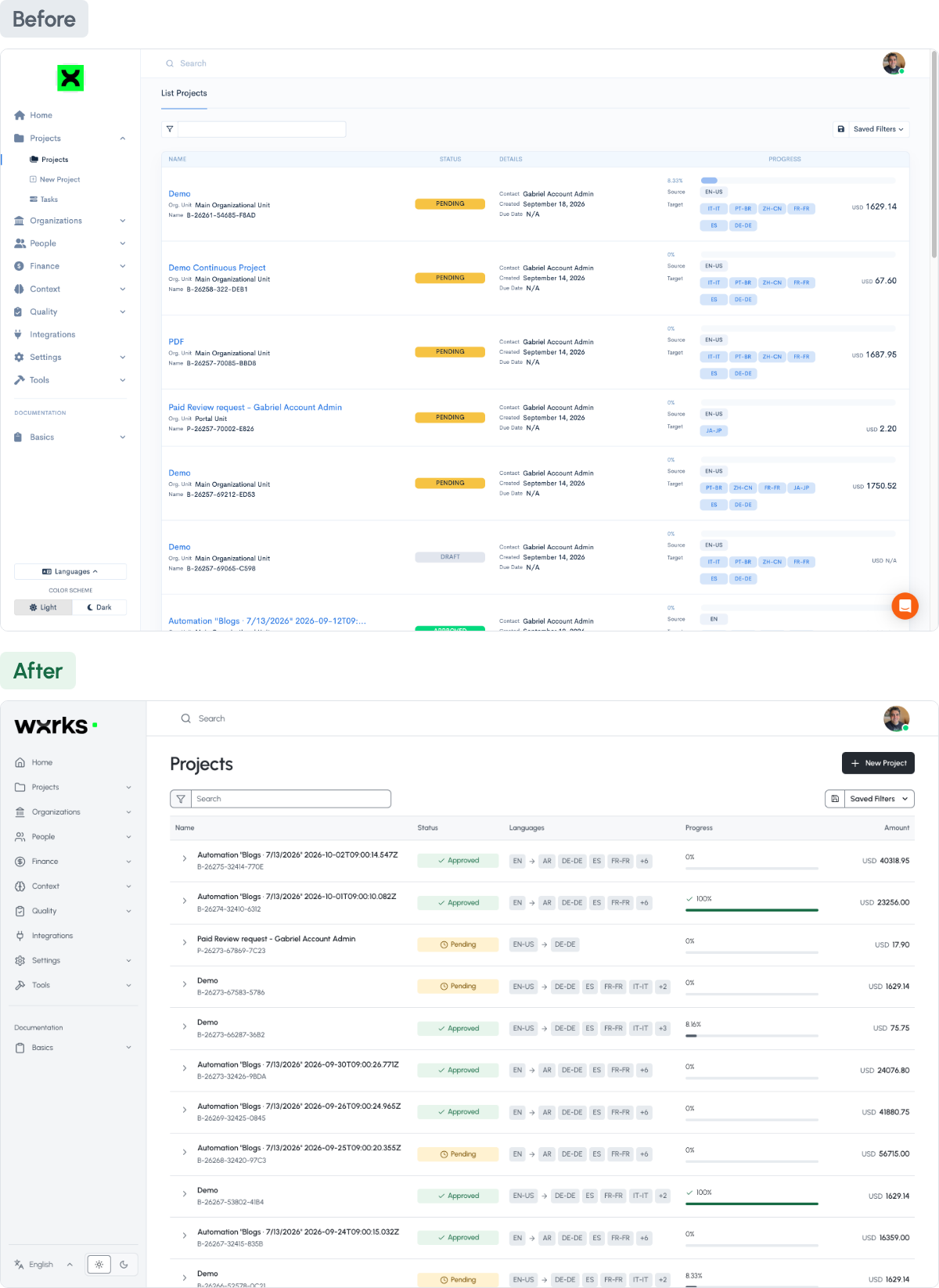
Open wxrks today and the new design is already there.
Since 2022 the platform has grown a lot, and every addition landed in the same frame. Screen by screen, it got louder. So we rebuilt the foundation.
We are heading into a world where agents do more of the mechanical work. The screen stops being the place where every action happens and becomes the place where the system asks for your attention, or decides not to. The new design is built for that. What needs your call stands out. What runs on its own stays quiet.
Everything that helps you find your way is still there. It just takes a step back, so your work takes the front.
And the editor, where most of the day happens.
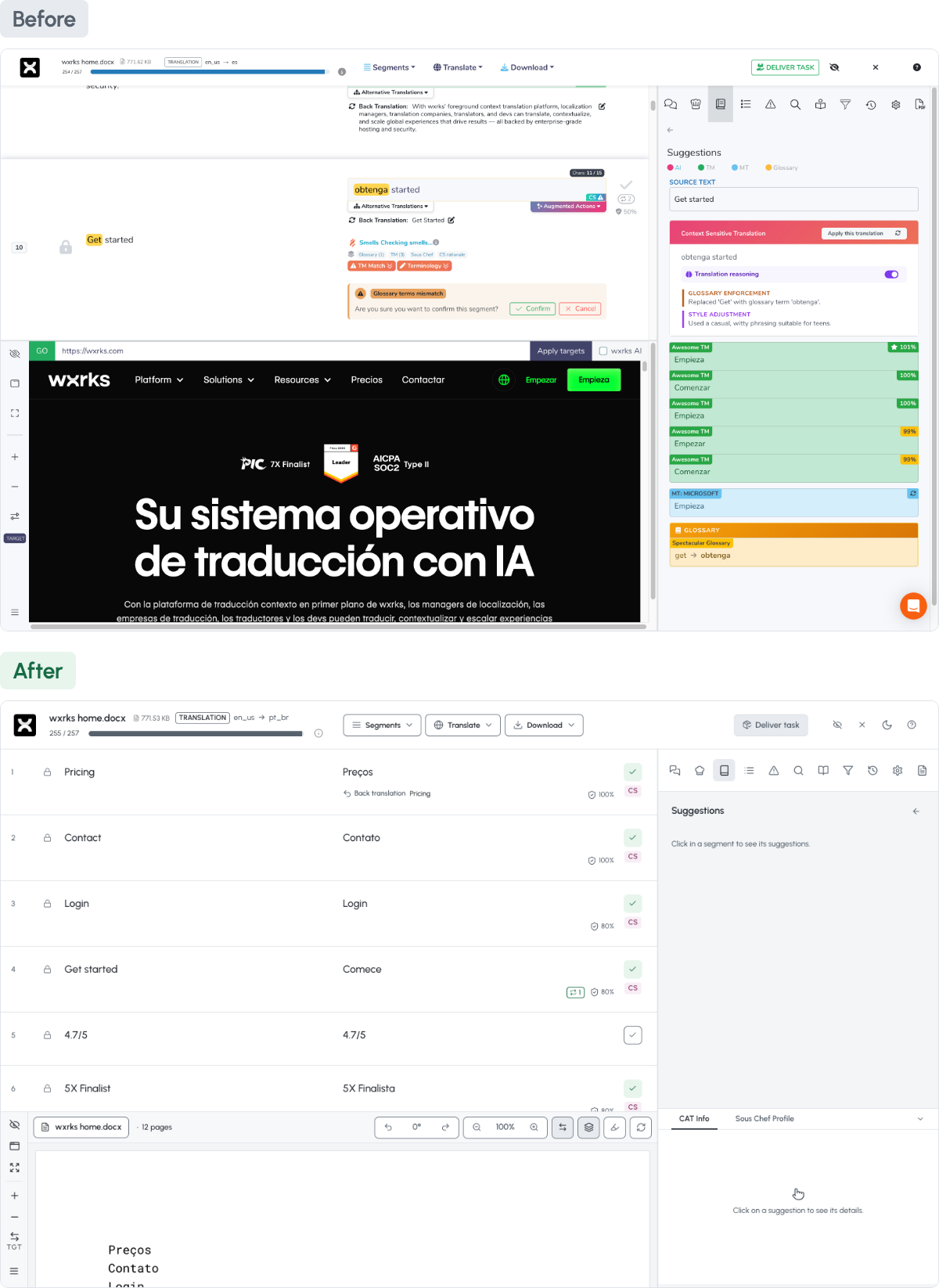
- A calmer screen, so the next decision is the first thing you see
- Room for agents to work in the background without adding noise
- Light by default, with a dark theme on the same palette
This is the version you get today. We keep improving it, week by week.
Read the launch story, The New wxrks Is Live
Smells Now Knows Your Rules Before It Flags a Translation
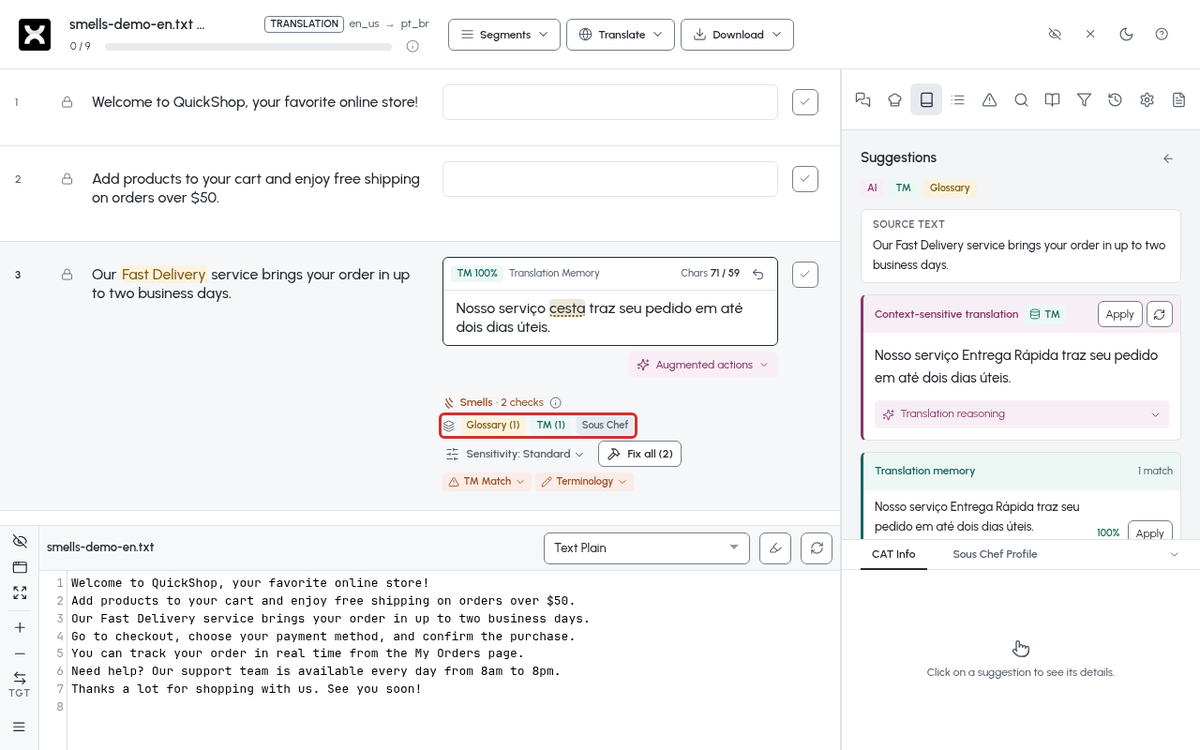
Smells now checks your glossary, your translation memory, and your instructions before it flags a sentence.
Until now it judged each sentence on its own. It could not tell that a word was your required term, or that the casual tone was exactly what you asked for. So some of its warnings were about choices you had already made.
Now Smells reads your glossary, your translation memory, and your instructions before it says anything. It flags real problems, and it stays quiet about the things you decided on purpose. When a translation drifts from one you already approved, it tells you and shows the approved version.
You choose how strict it is, Low, Standard, or High, and you can dismiss any finding.
- Your required terms and your chosen tone are never flagged as mistakes
- A warning when a translation drifts from one you already approved
- Three sensitivity levels, so Smells is as strict as your project needs
Fewer warnings about decisions you already made.
How Smells and the Confidence Score work, in the help centre
Auto-Confirm Segments by Confidence Score, at a Threshold You Set
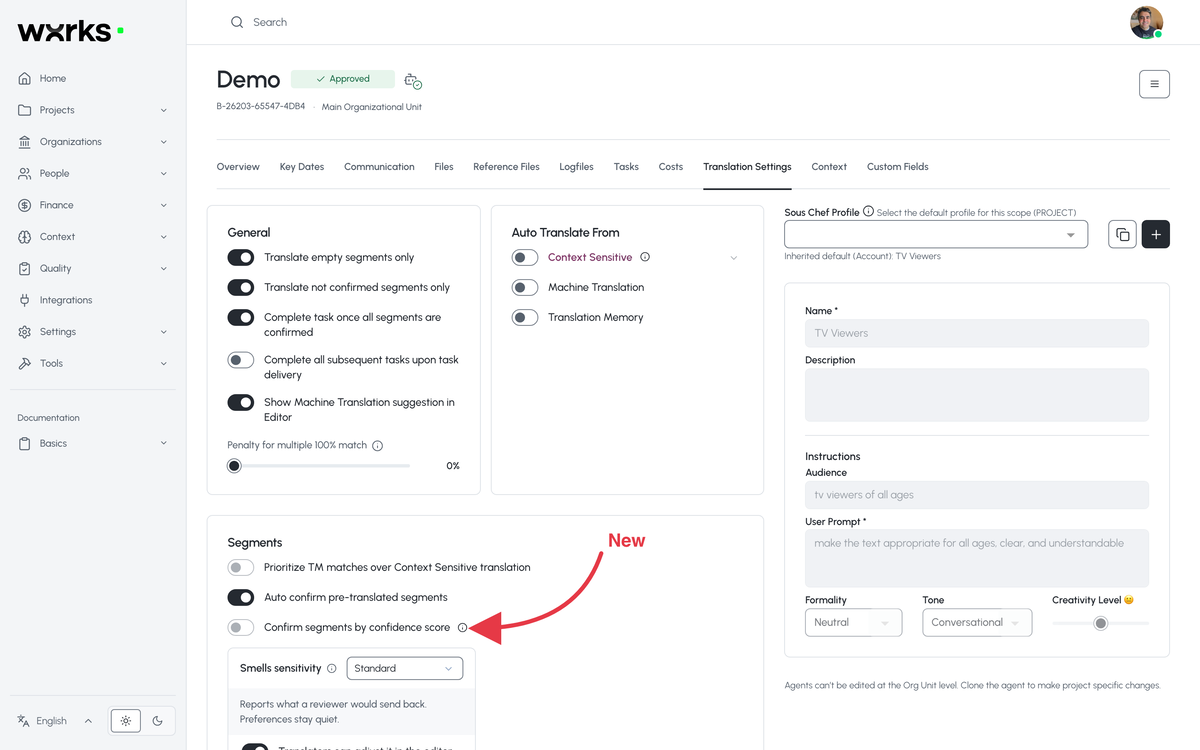
You set a confidence score, and the translation agent confirms every pre-translated sentence that clears it. The rest wait for a linguist.
When the translation agent pre-translates a file, Smells now scores every sentence it wrote. Sentences that score above your bar are confirmed automatically. Everything below it waits for a linguist. You set the bar, 85% by default.
If you want, the confirmed words count on the quote at their own rate, so the client sees the saving before the work starts. Edit a confirmed sentence and it goes back to normal pricing.
- One slider for the bar, per client or per project
- Confirm the sentences that pass, lock them, or both
- A savings line on the quote, if you turn it on
Nothing skips review unless you set the bar it had to clear.
How to set the confidence gate, in the help centre
Sous Chef Profiles, Set a Voice Once and Choose Where It Applies
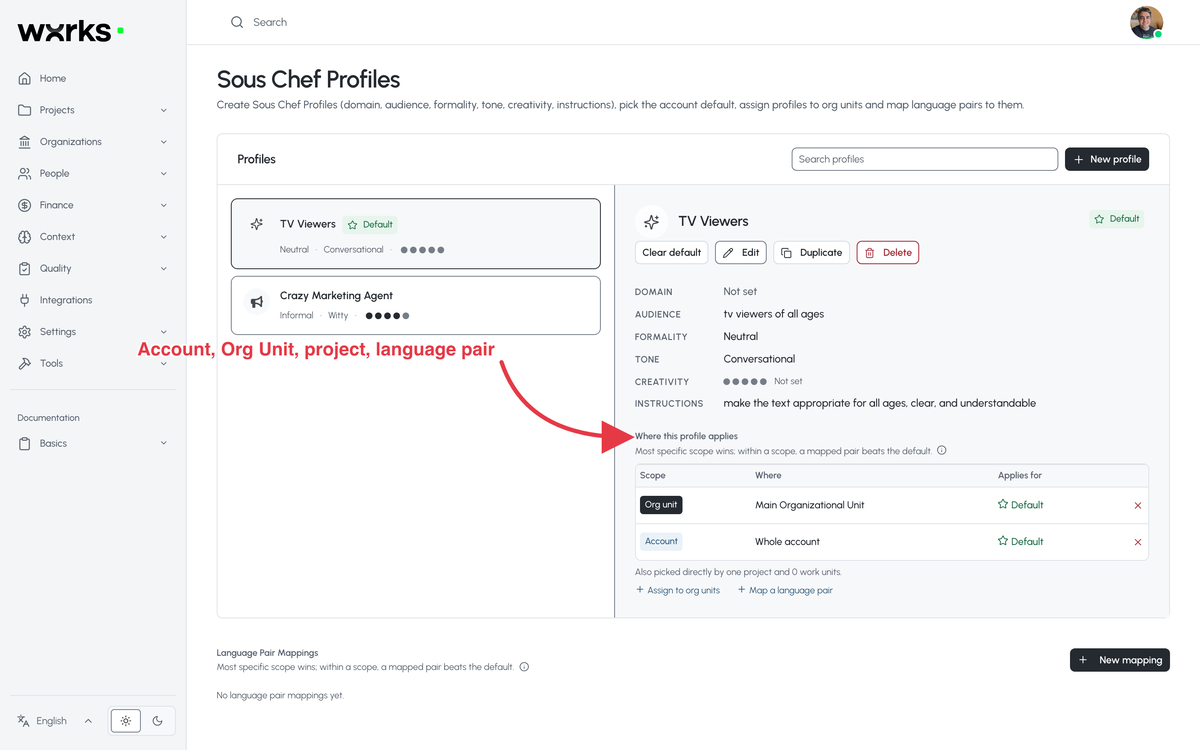
Save a voice as a profile once, with the reader, the tone, and your instructions, then choose where it applies.
Sous Chef is our agent for tone and style. Now you save that knowledge as a profile, who the reader is, how formal, how creative, and your written instructions, and you choose where it applies, the whole account, one client, one project, or one language pair.
The most specific choice wins, so a client's profile overrides the account's, and a project's overrides the client's. A linguist can see which profile is on a document and switch it for that document only.
- One profile per voice, from Legal Compliance to Game UI Strings
- Applied by account, client, project, or language pair
- Visible and switchable from the Editor
You set the voice once. It holds where you said it should.
How Sous Chef Profiles work, in the help centre
See Every Translation on the Figma Design Before It Goes Back
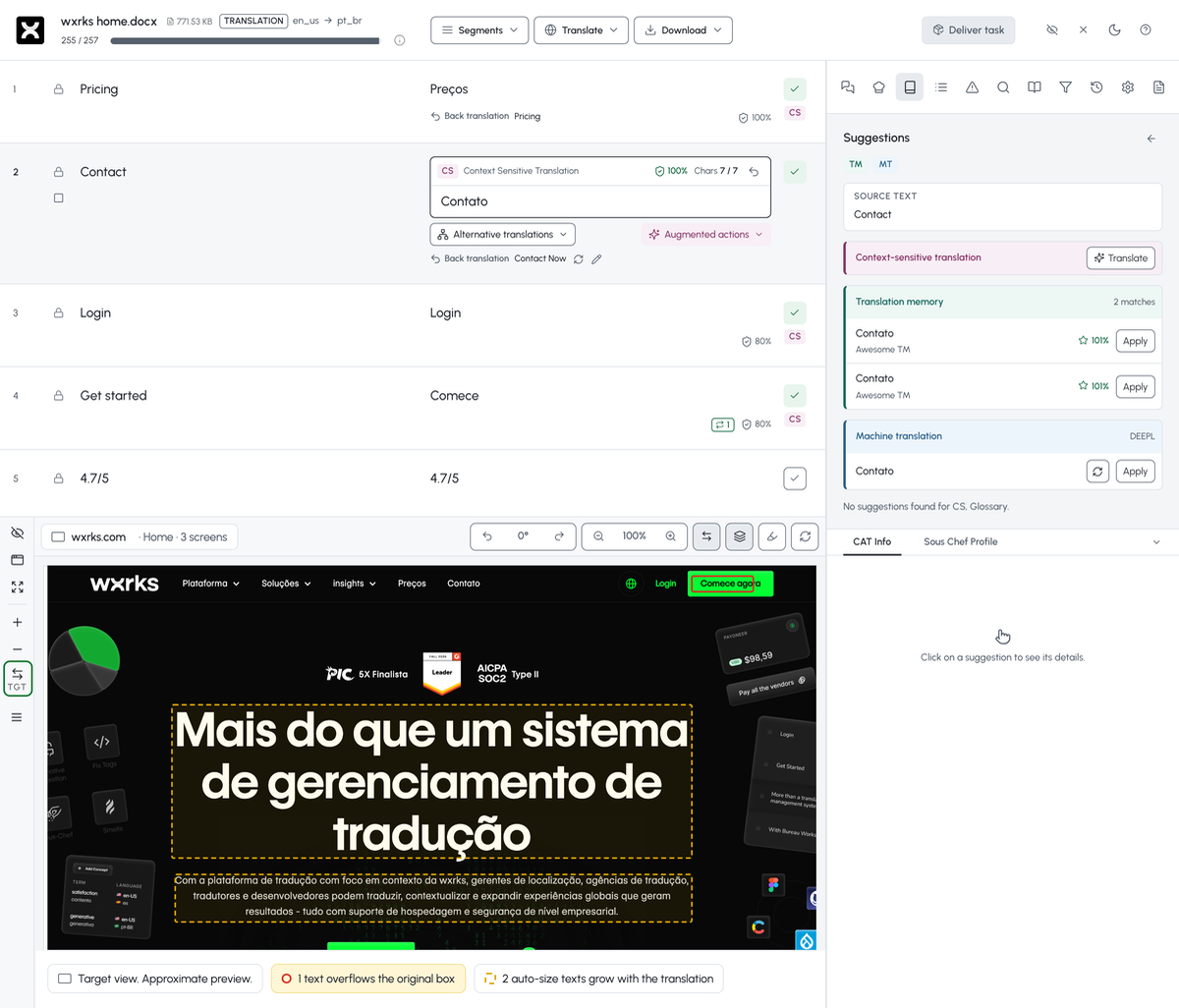
Switch the editor's Figma preview to Target and each translation appears on the design itself, with text that no longer fits marked in red.
For work units sent from the wxrks Figma plugin, the editor already showed the design. Now it shows your translations on it. Open the preview, switch from Source to Target, and every text on every screen carries its current translation, at the size, weight, and alignment recorded in Figma.
As it paints each one, the preview checks it against the space the original text had. A solid red box means the translation overflows and would be clipped in Figma. A dashed amber box means the text auto-sizes and will grow, so look at what sits next to it. The footer counts both.
Click a text on the design and the editor jumps to its segment. Click a segment and the design scrolls to it. Edit, move to the next segment, and the design updates.
- Red for text that overflows its box, amber for text that will grow with the translation
- Click any text on the design to jump to its segment, and back
- A count of both in the footer, so you know what to fix before the page returns to Figma
Text that does not fit gets caught in the editor, not in the design review.
How to review translations on the Figma design, in the help centre
Other updates
Eleven more changes shipped in September. Each one links to the page that explains it.
Auto Task Placement, a Guided Setup
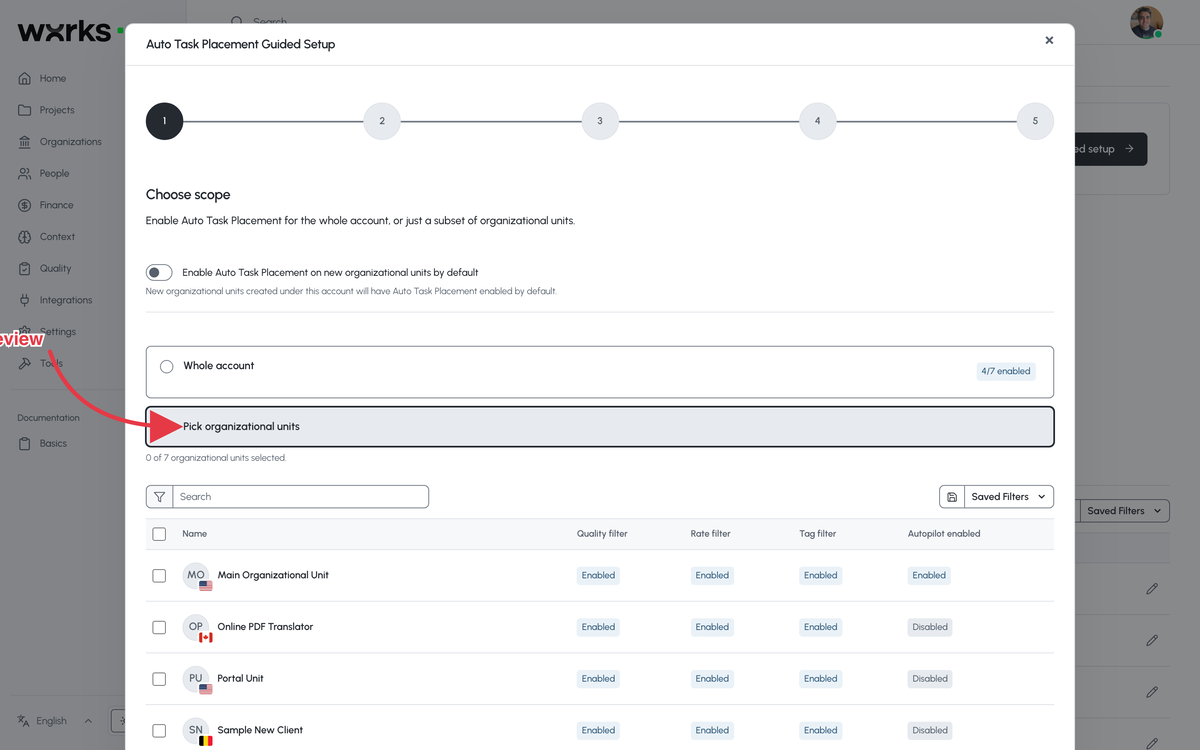
A five-step setup checks every vendor's rates, languages, and workflows, fixes the gaps in bulk, and shows who can take the work before you switch it on. Vendors get an email when tasks they can claim appear. The guided setup, step by step.
XML and XLIFF Files Previewed the Way They Are Read
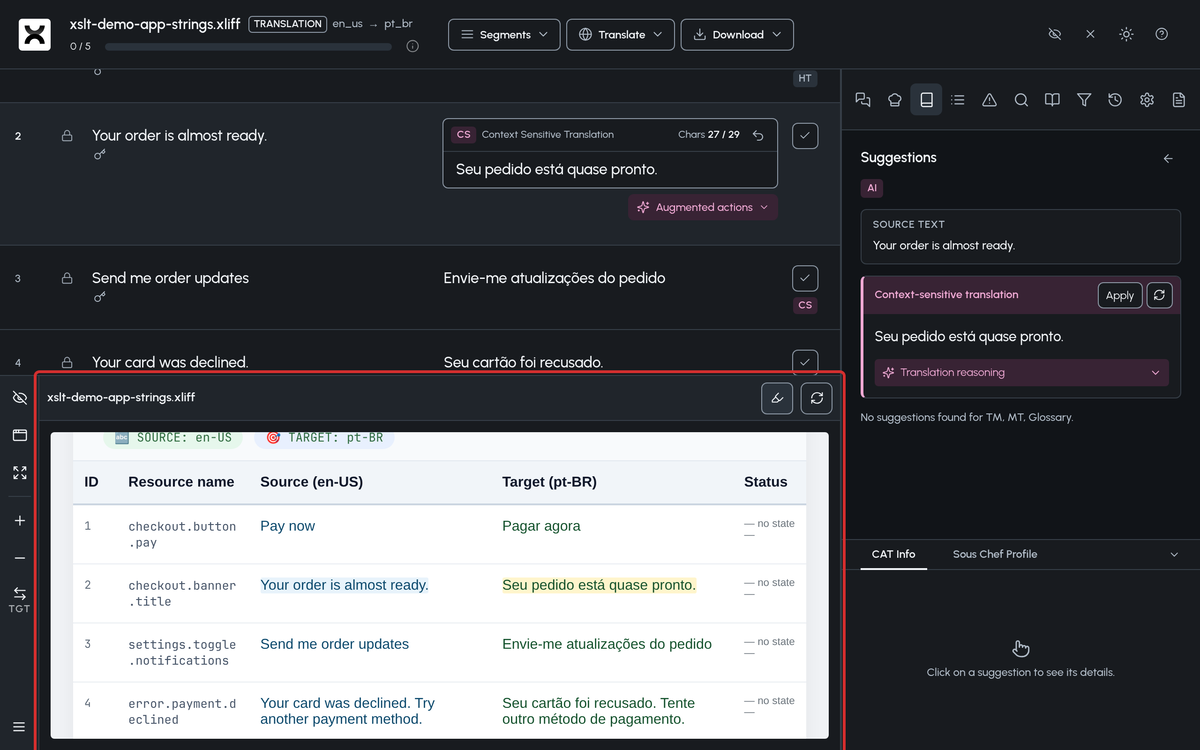
Attach an XSLT stylesheet (a W3C standard for turning XML into another document) to an XML or XLIFF file and the editor shows a formatted page instead of raw markup, with the current segment highlighted. Set it per file, per Organizational Unit filter, or on a running project. How to attach a stylesheet.
A History Tab on Every Task
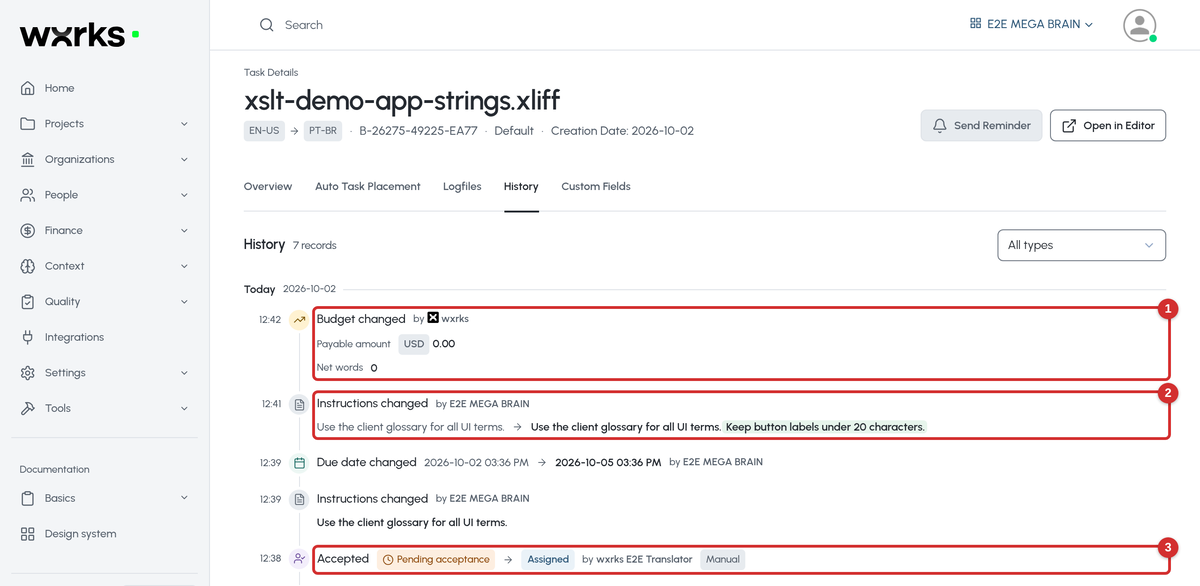
A timeline of every change to a task, who made it, and the value before and after: assignments and acceptances, status, due date, instructions, and budget. Task details, History tab. What the History tab records.
The Aligner
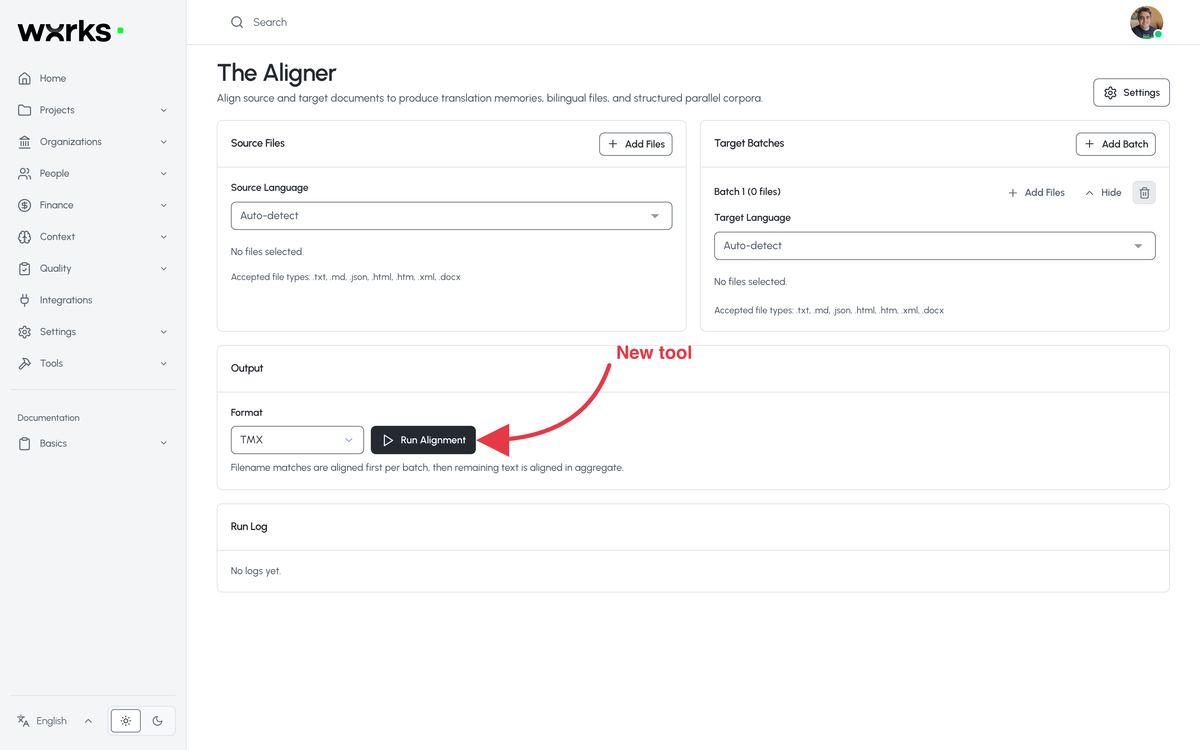
Pair the originals and the translations you already have, sentence by sentence, and download a TMX file ready to import into a translation memory. Tools, The Aligner. How to align existing translations.
AI Token Usage
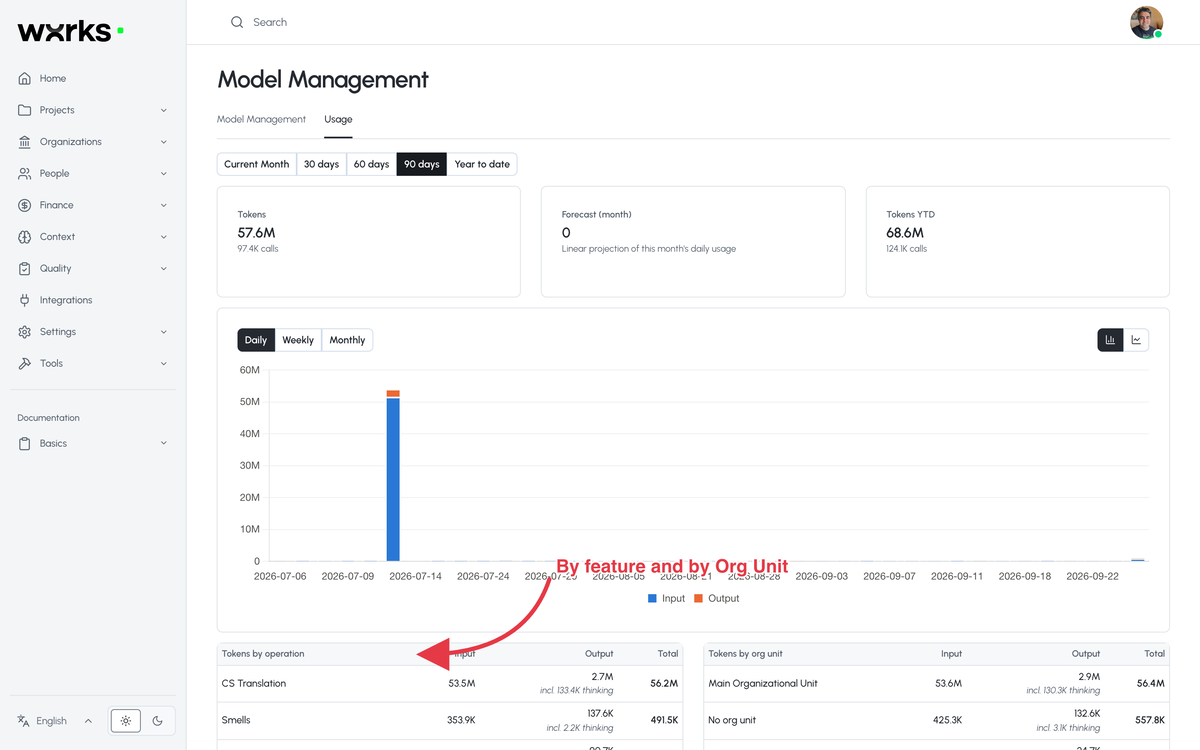
A Usage tab in Model Management shows tokens by AI feature and by Organizational Unit, with a forecast for the month. How to read the Usage tab.
Instructions and Reference Files at the Organizational Unit
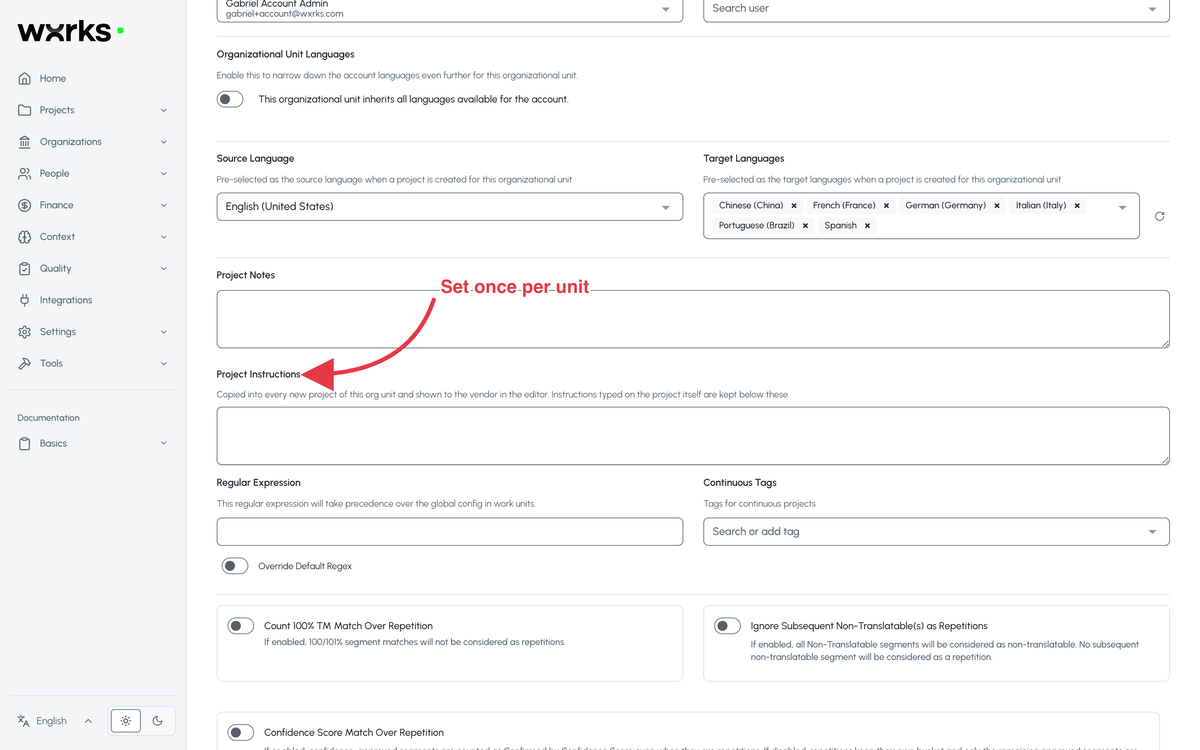
Set them once on the unit, and every new project in it starts with them. All about Organizational Units.
Finer Permissions
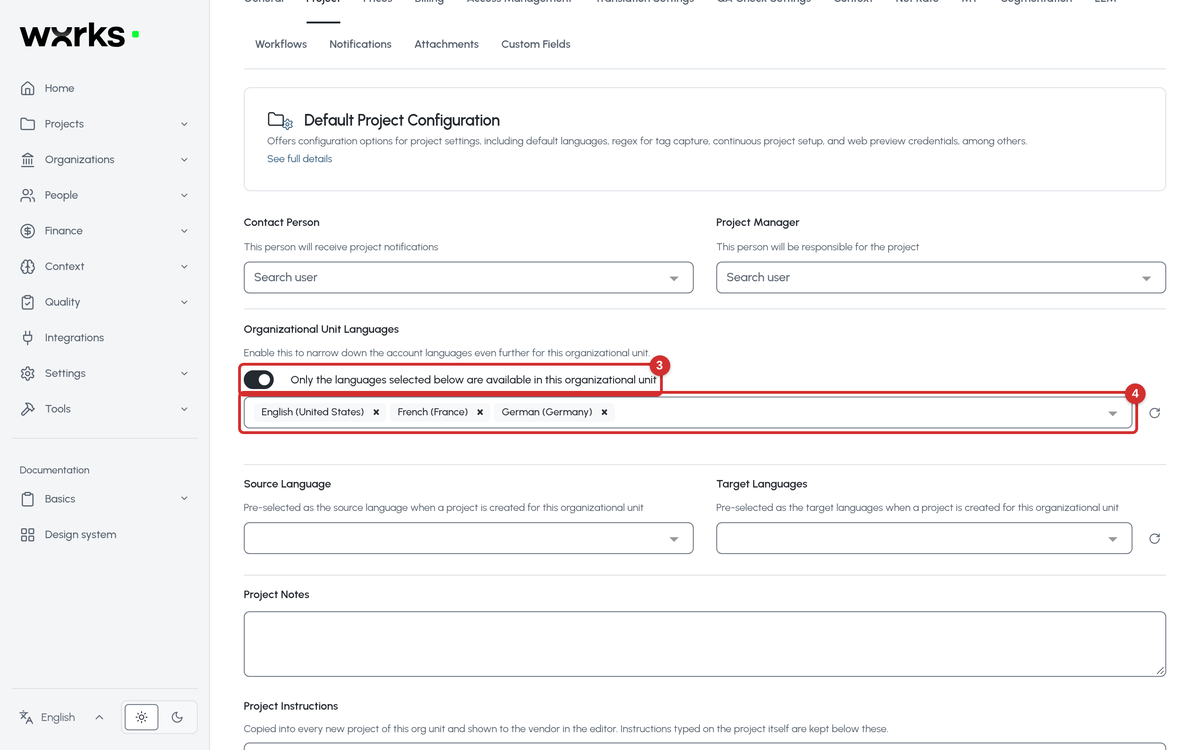
Separate create, update, and delete permissions for translation memory and glossary entries, a permission for changing a project's due date, and a per-unit list of allowed languages. The permissions reference. How to restrict a unit's languages.
Multilingual Excel, Mapped on Import
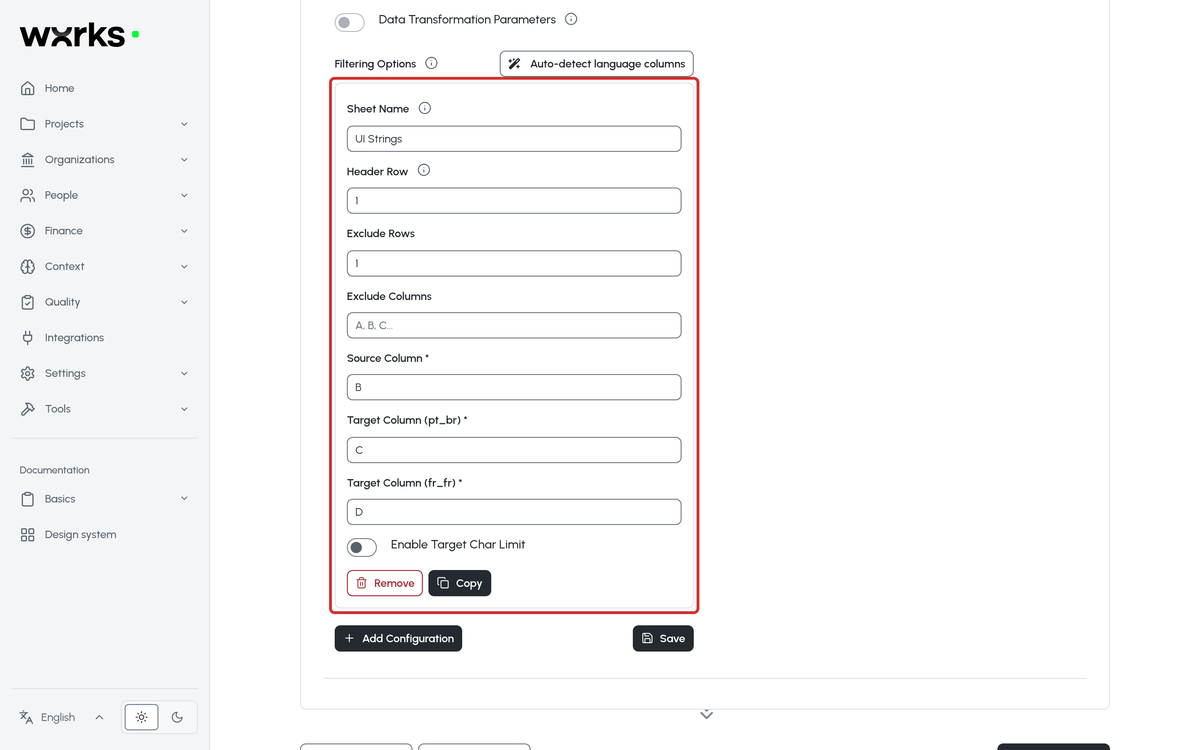
Target languages are picked up from the header codes, so the column mapping is filled in for you. How multilingual spreadsheets work.
Quality Reports in Bulk
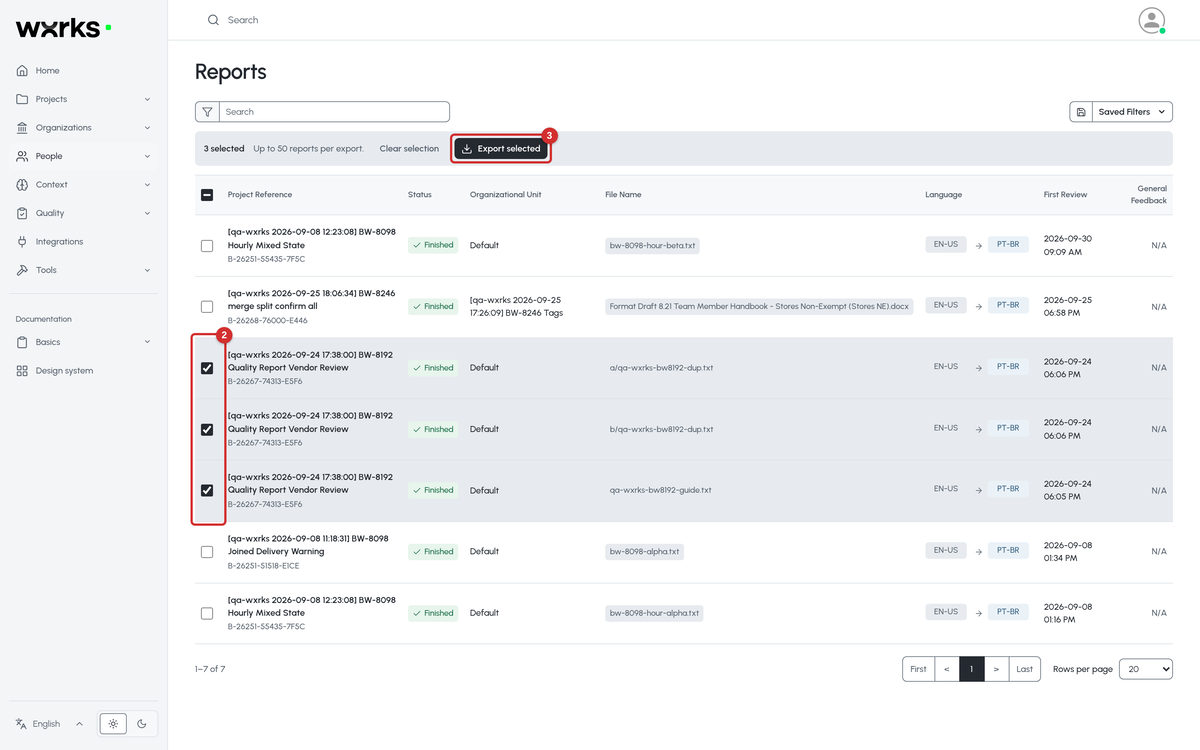
Export the Quality Reports of many work units at once, with the tracked changes inside the XLSX. How to export Quality Reports.
Superscript and Subscript
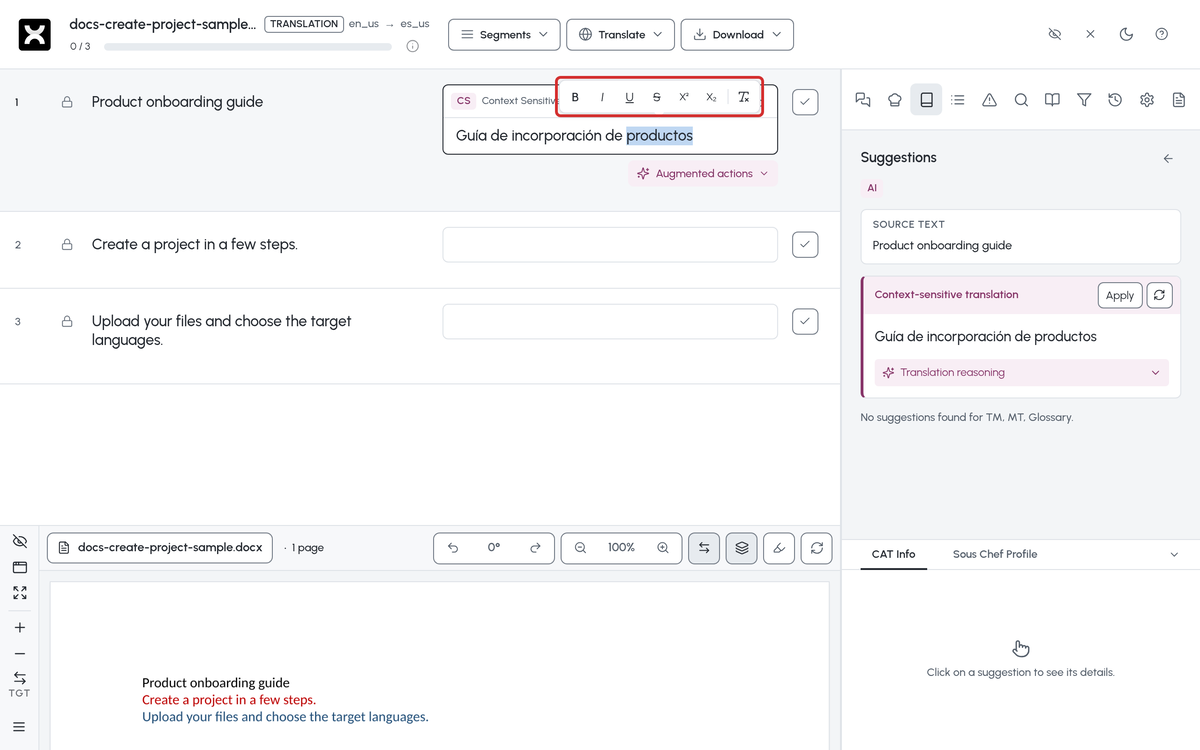
Two more options in the Editor's formatting bar, for DOCX, XLSX, and PPTX files. Formatting target text in the Editor.
Three New Languages
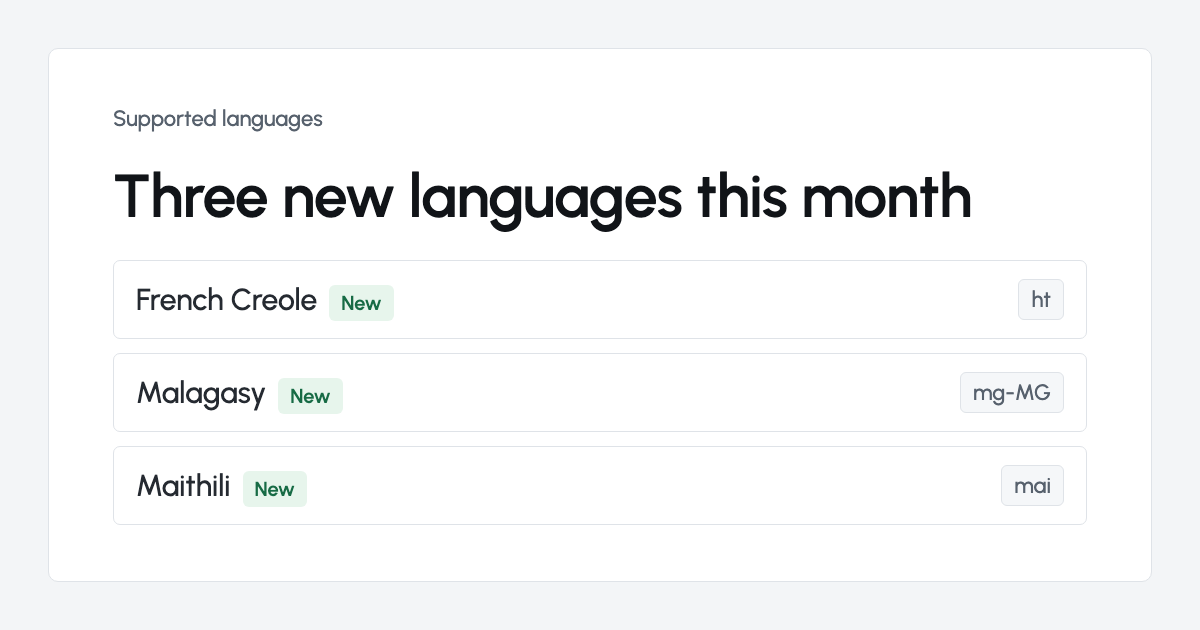
French Creole, Malagasy, and Maithili. Every language wxrks supports.
What's new
See You at LocWorld56 in Vancouver

We will be at LocWorld in Vancouver from October 19 to 21. If you are going, come find us. We would love to hear how the new design works for your team. Event details.
Websites and Translation in the Agent Era, 24 Platforms Compared
In 18 months almost every website platform changed how it charges, what it includes, and who it lets in. We read 24 of them side by side, from the pricing pages to the homepages, and wrote up what it means for a site that runs in more than one language. Read the article.
Put Your Agency or Your Name on the wxrks Marketplace
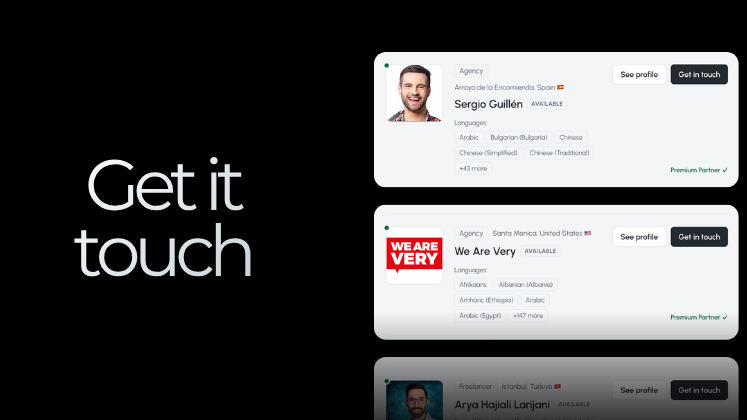
The wxrks community now has a marketplace where clients look for translation partners by language, country, and specialty. Agencies and freelancers can claim a listing in minutes. If you take on work, list yourself. See the marketplace.
Website Word Counter, a Free Tool to Size Any Site
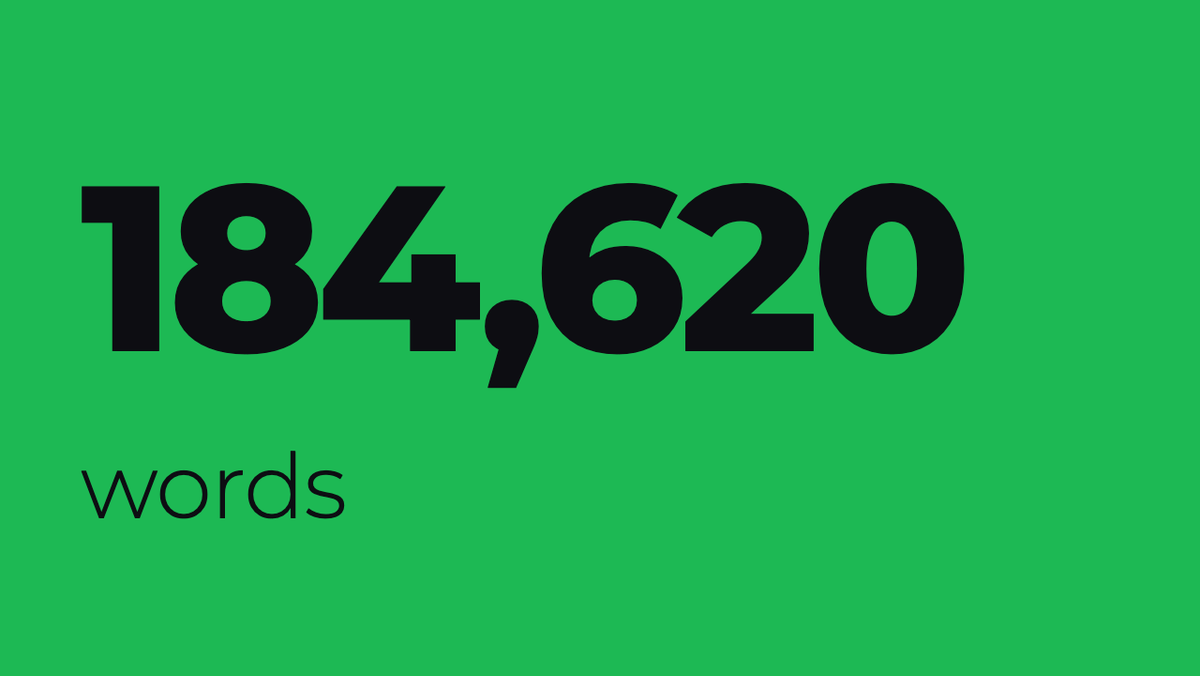
Paste a URL and get the word count of a whole website, by page and by folder, so you can quote a translation or plan a rewrite with a real number. Word Counter opens each page in a real browser, leaves menus and footers out, lists duplicate pages apart, and can save every page as Markdown. Free, and no sign-up to start. Try it free.
Hugo's latest walkthroughs
Three new short videos on our channel, two to three minutes each.
Watch: Connect wxrks to Claude with MCP for AI-powered translation
Watch: Connect Bitbucket to wxrks for automated translation
Watch: Analytics in wxrks, dashboards, KPIs, and data tables
Watch them all on the wxrks channel
Grateful to have you with us. Let's move forward with purpose, together.
Let's make it happen,
let's make it wxrks!
Libérez la puissance de la glocalisation avec notre système de gestion de traduction.
Libérez la puissance de la
stème de gestion de traduction.


.png)
.png)
.png)
.png)

.png)
.png)
.png)


.avif)