


At LocWorld56 in Vancouver, Elitza Dublewa-Servatius from Coca-Cola Europacific Partners closed her session with one learning. If you make the right path the easiest one, people will follow.
We haven't stopped thinking about it, because it describes the job of everyone who runs localization. You rarely type the words yourself. You decide how they get made. Which memory a project reads, which model drafts the first version, when a segment can confirm itself, and what a linguist can change.
As agents take on more of the drafting, those decisions carry more weight. A rule you set once reaches every project, every team, and every language after it.
So this month we made the right path easier to find. The place where you make those decisions is rebuilt, and so is the way they reach every team. Around it, more of the AI follows the rules you set.
And with that, let's take a look at what's new.
Settings, Rebuilt So Every Option Is Easy to Find
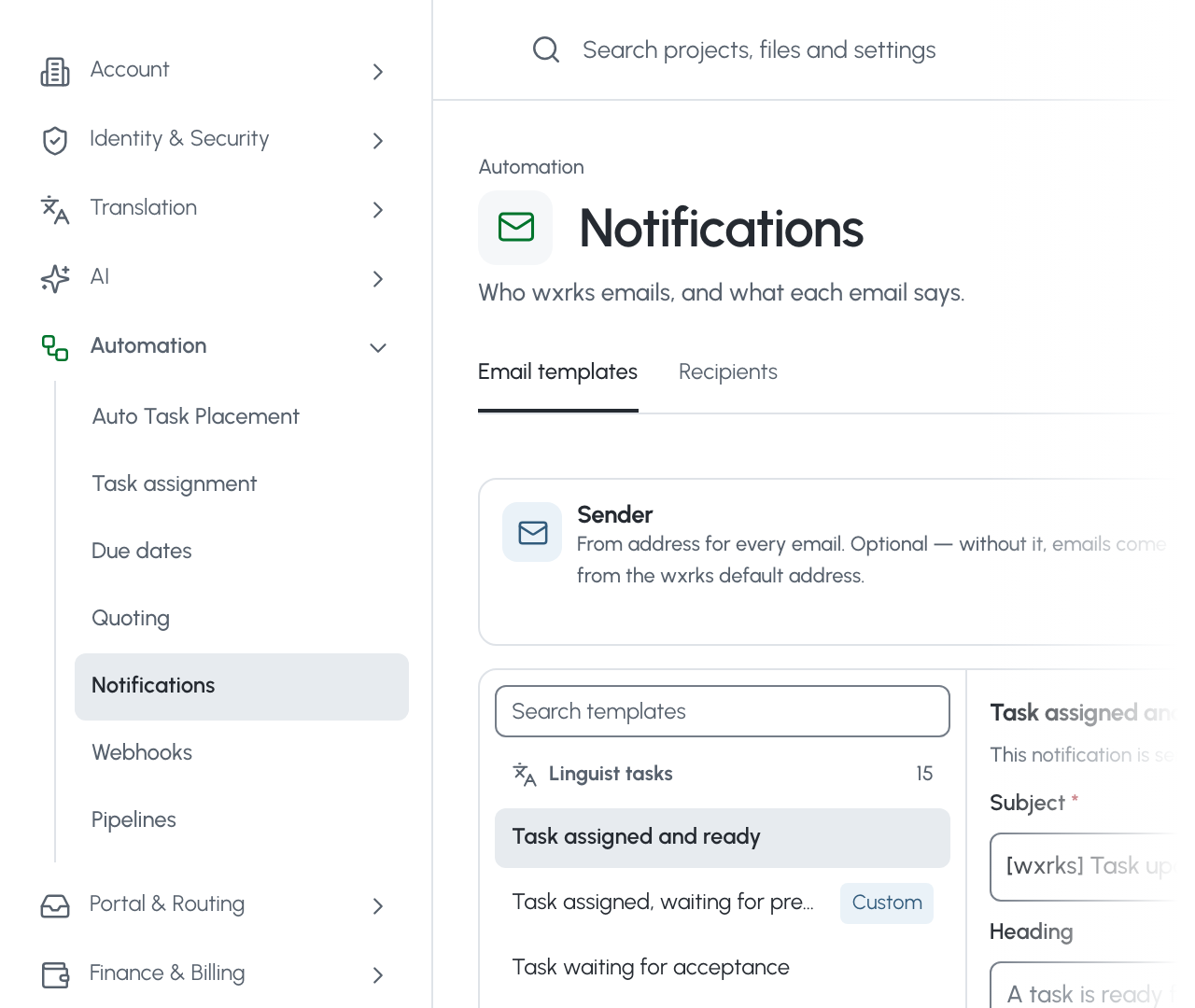
Settings is rebuilt from the menu down, in seven groups, with one save bar and a template that updates every team's settings at once.
You open Settings a few times a month, and each visit changes every project after it. So we rebuilt it around the decisions you make there.
The pages now sit in seven groups, from Account to Finance & Billing, and each one opens with a line on what it controls. Everyone sees only the pages they can use. Change something and one bar appears with the save button, and wxrks asks before you leave with unsaved changes.
The Organizational Unit template got the same care. An Organizational Unit is the part of your account that holds one team's or one client's settings. Change the values new units start with, then send the change to every existing unit, or only the ones you pick. Undo puts each one back.
- Seven groups, each page with one line on what it controls
- One save bar, and a check before unsaved changes are lost
- Template changes sent to every unit, or the ones you pick, with undo
Your old bookmarks still work. They open the same page in the new layout.
All about Settings, in the help centre. How to set up the Organizational Unit template.
Cmd+K Opens One Search for Projects, Files, and Settings
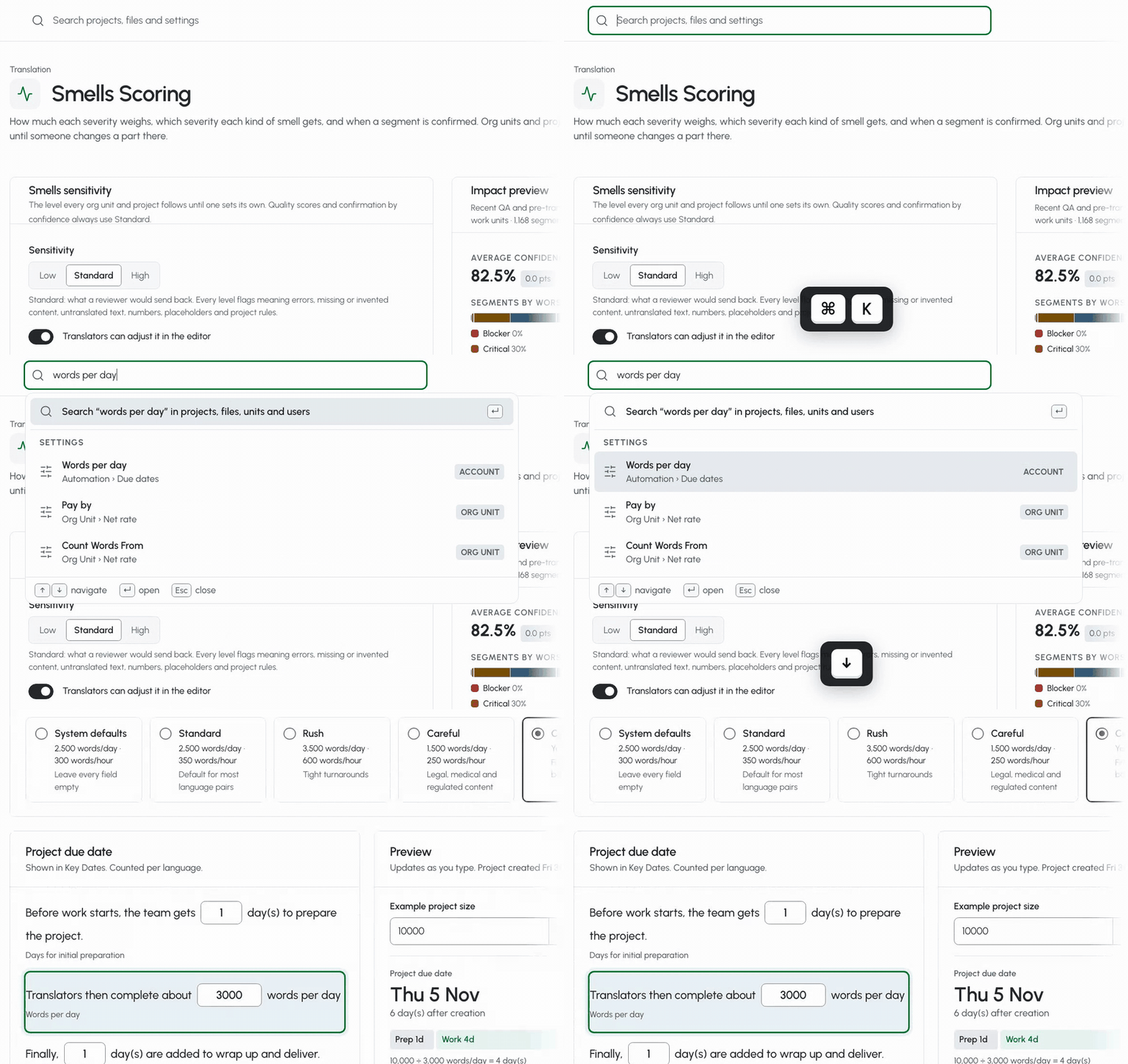
Press Cmd+K, or Ctrl+K on Windows, on any page, and one search box finds your projects, files, and people, and now every setting too.
The search bar at the top of wxrks already found your projects and files. This month it learned two things.
Cmd+K, or Ctrl+K on Windows, puts you in it from any page, so your hands stay on the keyboard.
And it finds settings. Type what you want to change, like words per day, and the list shows each match with where it lives, the account or an Organizational Unit. Pick one, and wxrks opens the page at that field, outlined so you see it right away.
Press Enter instead, and the full results show projects, files, people, and settings, each on its own tab.
- Cmd+K or Ctrl+K from any page
- Every setting by name, with where it lives
- Straight to the field, outlined on the page
Type the setting's name and you're there.
How to search for a setting, in the help centre.
Autocomplete, Mentions, and Resolved Threads in the Editor
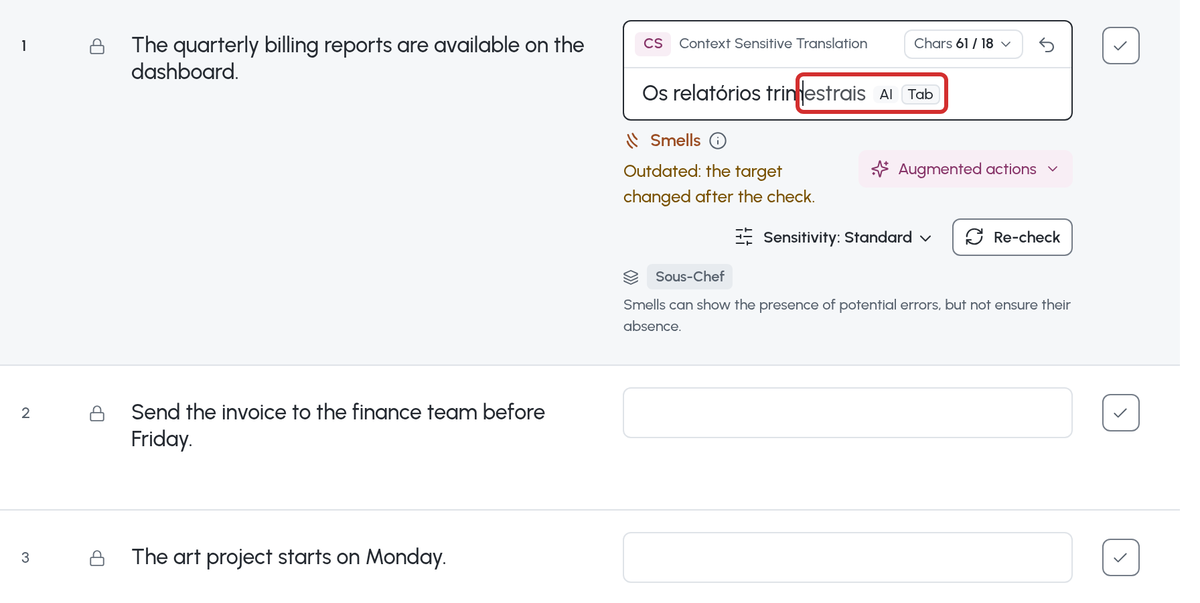
The editor now finishes the word you are typing, tells only the people you mention, and lets you close a comment thread once it is settled.
Last month we rebuilt the editor's foundation and said the next features would be built on it. These are the first.
After the third letter, the rest of the word appears in gray, taken from your glossary first, then the translation memory, AI, and machine translation. Tab accepts it. Terms marked Forbidden are never offered.
Comments read like a conversation now. Mention a colleague and only they are notified. Resolve a thread when it's settled, and turn on a QA check that flags the ones still open.
The Translation Change tab shows what changed from one version to the next, and search can match the source and the target together, by case, or by tag.
- Autocomplete from your glossary, memory, and AI, with Tab
- Mentions that notify only the people you name
- Threads you can resolve, and an optional QA check for open ones
Small things, for the person who spends the whole day in the editor.
How to autocomplete words in the editor, in the help centre.
Smells Scoring, Set How Much Each Problem Lowers the Score

Smells, our agent that reads translations for meaning, gives every segment a Confidence Score. Now you decide how much each kind of problem lowers it, and when a segment can confirm itself.
Since September, a segment can confirm itself above a score you set. This month you set what the score is made of.
Start from a preset, the wxrks default, MQM-style (the industry's error-scoring model), or Strict, or set the weight of each severity yourself. Give each kind of problem its own severity, or tell Smells not to report it. Then choose when a pre-translated segment confirms, by the worst problem left in it.
Before you save, an impact preview runs your rules on the last 90 days of your own segments, at no AI cost, and shows what would have confirmed.
The account sets the default. An Organizational Unit or a project can change any part of it.
- Presets, or your own weight for each severity
- A severity for each kind of problem, or none
- An impact preview on 90 days of your own segments
The agent scores every segment by the rules your team agreed on.
How to set up Smells Scoring, in the help centre.
AI Actions and Editor Settings, Set Once for a Whole Team
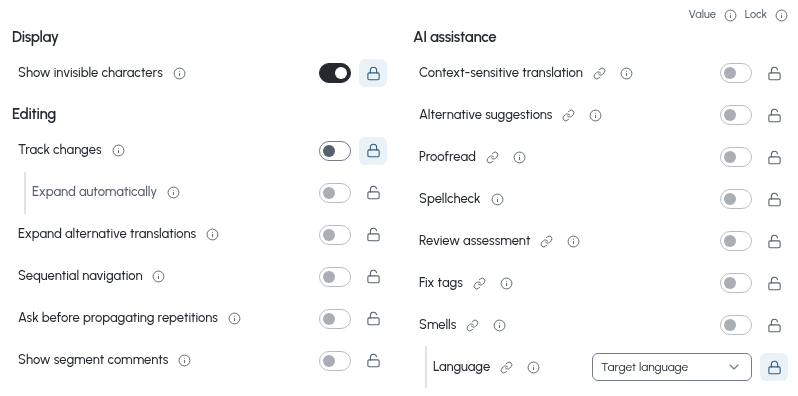
Choose which AI actions run for the account, a unit, or a project, and save the editor's options as named sets you can lock for linguists.
A client whose files never get an AI proofread. A review team that always works with track changes on. Until now, that depended on every linguist remembering.
Block any of ten AI actions, from proofreading and Smells to Sous-Chef, for the account, an Organizational Unit, or a project. The level above sets the limit, and automatic steps skip what's blocked.
Shared Editor preferences keep the editor's options as one named set, each one free, locked on, or locked off. Each unit and project picks a set. Linguists see a lock on what you locked, and the rest stays theirs to choose.
- Ten AI actions you can block by account, unit, or project
- Named sets of editor options, each free, locked on, or locked off
- A lock linguists can see, and the rest left to them
The rules hold for every linguist on the team.
How to lock editor settings with shared Editor preferences, in the help centre.
Other updates
Twelve more changes shipped since our last update. Each one links to the page that explains it.
Preview a File's Segments Before You Create the Project
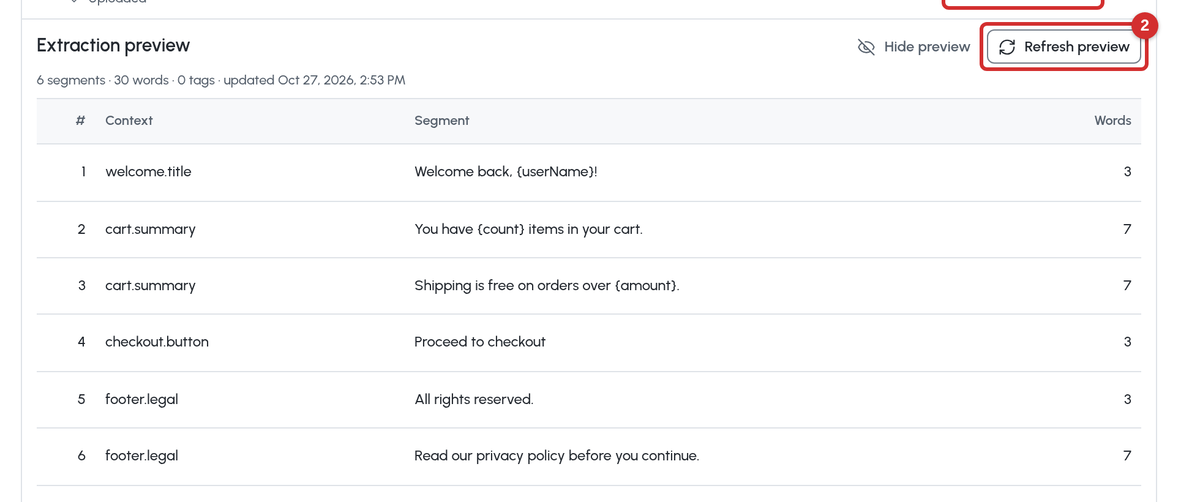
Upload a sample file and see the segments, words, and tags a filter will take from it, before you save the filter or create a project. How to preview a file's segments.
Filter Settings for the Whole Account

Set one filter per file type for the account. Organizational Units without a default of their own use it, and a unit can copy one to change it. How to save file settings as a filter.
Switch the Sous-Chef Agent From the Suggestion
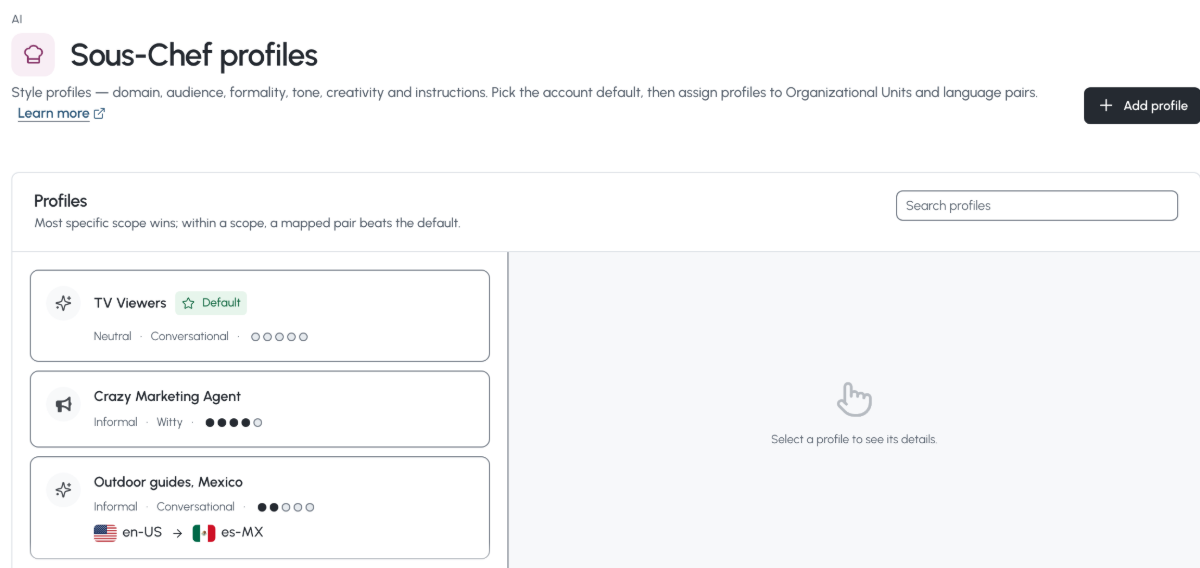
The editor shows which Sous-Chef agent is translating the file, and you can switch it on the suggestion card. The translation is redone in the new voice. How to use the Sous-Chef tab in the editor.
A Partner Account Can Pay Your Vendors

Link two wxrks accounts, and a service provider approves and pays your vendor payables with its own PayPal or Payoneer. How a service provider pays your payables.
Clear the Translations of a Task

Empty a task's target text in one step when the pre-translation isn't worth editing. Locked segments stay, and the old text stays in each segment's history. How to clear the translations of a task.
Custom Fields With a Scope
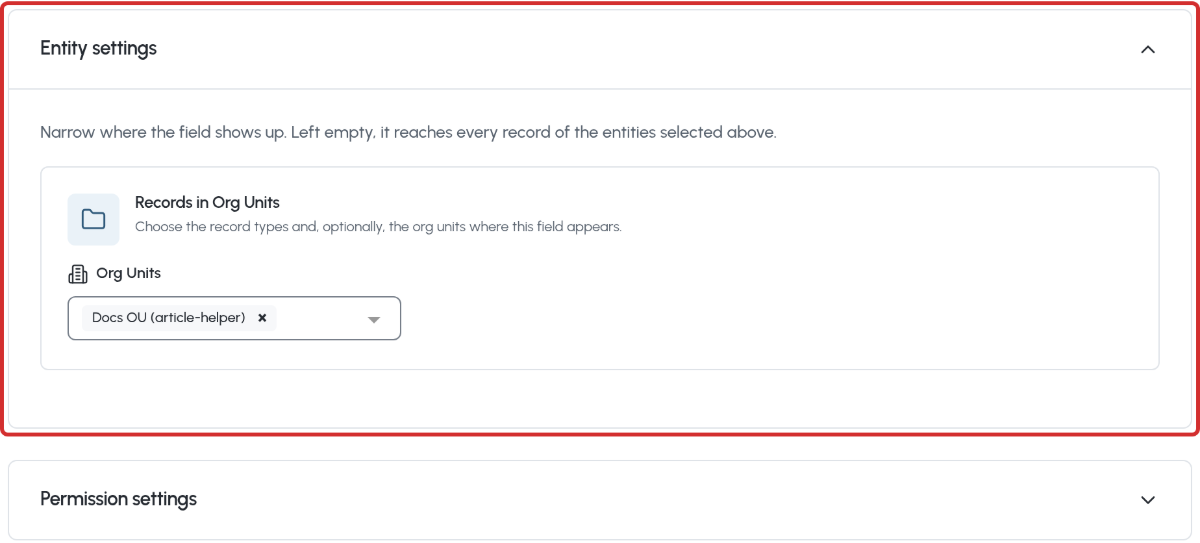
Limit a custom field to chosen units, glossaries, memories, or organizations, and choose who can see or edit it. How to limit where a custom field applies.
Any Permission, for One Person

Turn off any permission a user gets from their role, not only the sixteen you could before, and turn it back on. How to manage users.
A Minimum of Alternative Translations

For transcreation, set how many alternatives each segment needs, for the account or a unit, and whether fewer gives a warning or stops the confirm. How to use alternative translations.
Locks, Confirmations, and Comments Travel With Your Files

XLIFF exports carry them, and an import option brings them back. Bilingual Excel exports can include segment comments. How to export and import XLIFF files. How to export a bilingual Excel file.
Multilingual Excel Files Read by Language Name

Columns titled with a language's name, such as Portuguese Brazil, or with one of your own aliases, are matched to their language. How to work with a multilingual Excel file.
More Editor Shortcuts
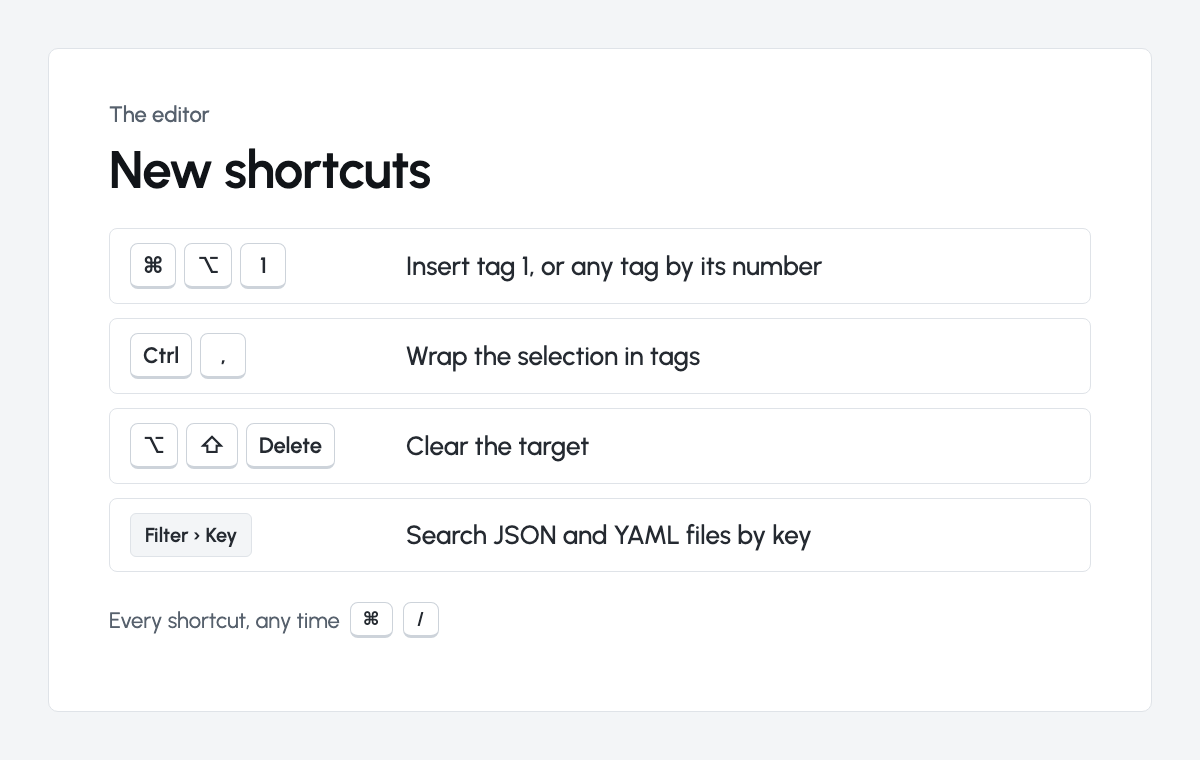
Insert a tag by its number, wrap a selection in tags, clear the target, and search JSON and YAML files by key. Every editor shortcut.
Drupal Projects Routed by Language
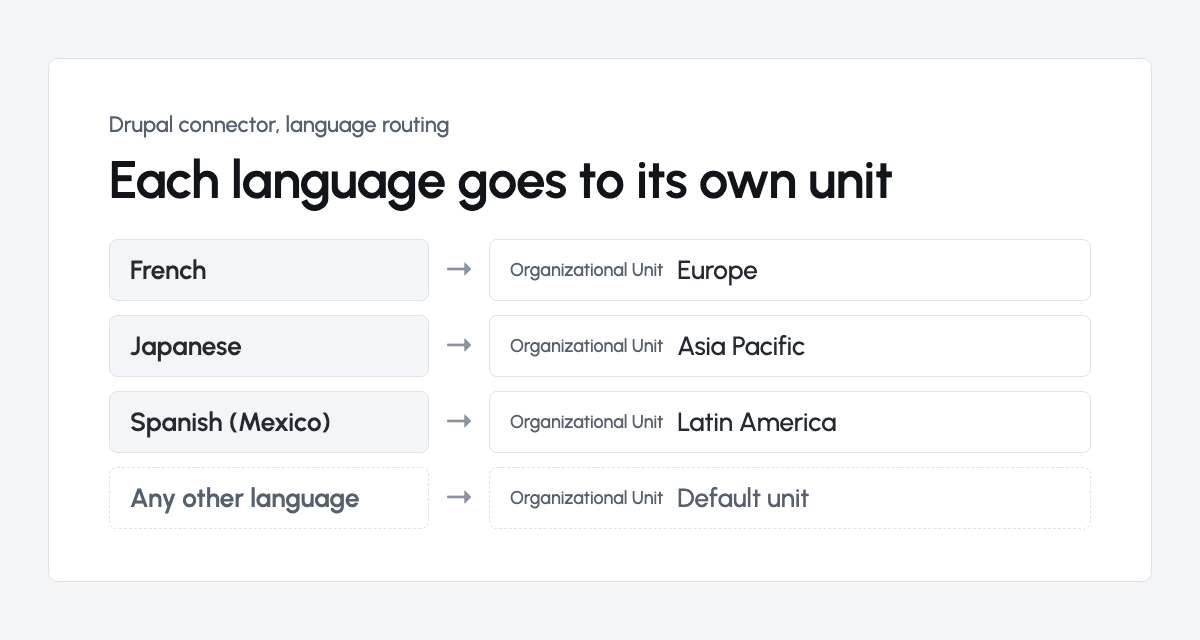
With the latest wxrks module, the Drupal connector sends each target language to the Organizational Unit you choose. The Drupal connector.
What's new
How CCEP Made Translation Easy, Elitza at LocWorld56

How Coca-Cola Europacific Partners went from leadership calling localization solved to 70 million words through one front door, with people at the center. The full session, on our channel. Watch the session.
Will AI Replace Software Engineers? A Dev's Honest Answer

Iverson Pereira, who led the editor rebuild, on handing the mechanical work to agents and keeping the judgment. Episode 1 of The wxrks Interviews. Watch the interview.
Our Context Sensitivity Research Is Published

84 of 100 AI suggestions were kept with no edit. The paper shows how, and where people still made the difference. Read the paper.
Grateful to have you with us. Let's move forward with purpose, together.
Let's make it happen,
let's make it wxrks!
Unlock the power of glocalization with our Translation Management System.
Unlock the power of
with our Translation Management System.



.png)
.png)
.png)
.png)

.png)
.png)
.png)