

wxrks already offers previews for almost 50 file types. Now, Figma, Photoshop, and InDesign have visual previews too, so you can see the design while you translate.
See where each line belongs, what is around it, and how much space it has, all inside the translation editor.
The two-minute video below shows how it works.
Figma: Click the Text, Find It in the Design
The Figma plugin already lets you send text to wxrks and bring translations back. What is new is the design preview in the editor.
Open content sent from Figma, and the preview loads on its own. There is no extra upload.
- Click a line in the editor to see it highlighted in the design.
- Click a text box in the design to jump to that line in the editor.
- Turn on "Show all boxes" to see all linked text areas.
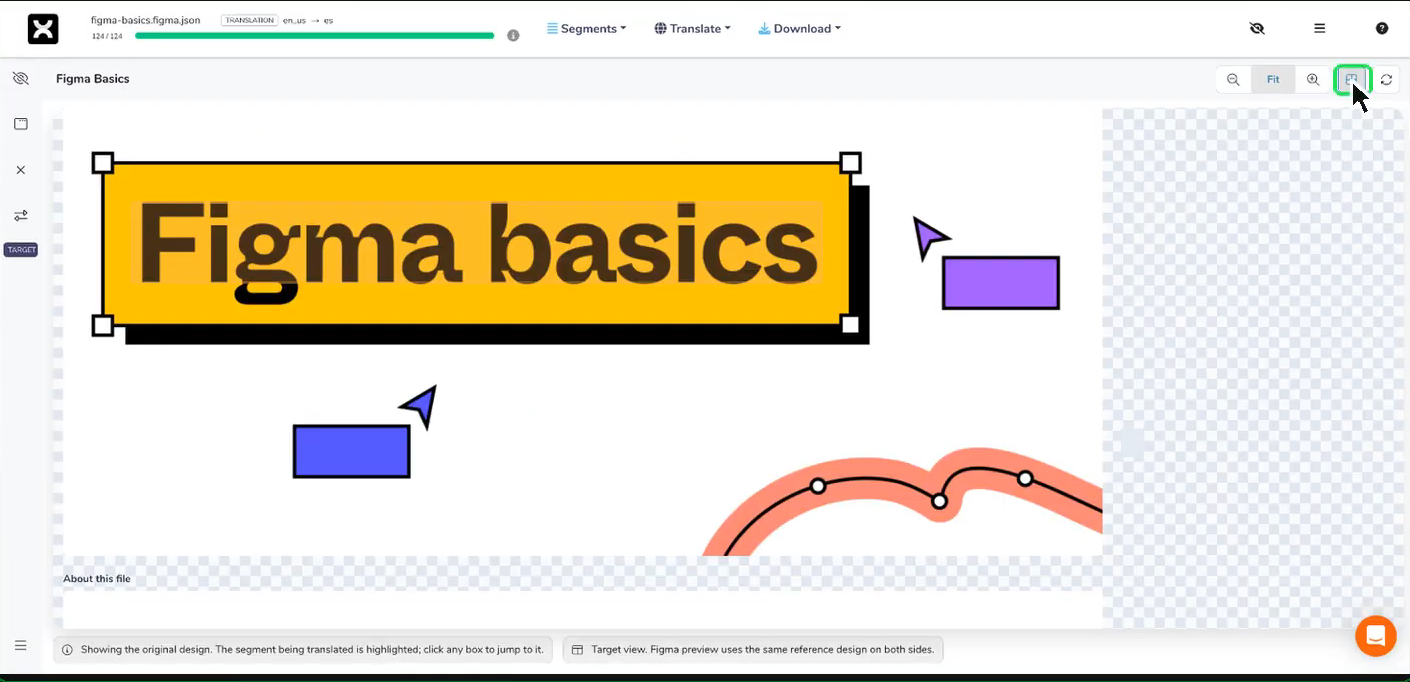
You can tell right away whether you are translating a button, a headline, or a caption. That helps you choose words that fit without asking the designer for screenshots.
The Figma preview shows the original design. It does not show your translated text in place. Check the final layout in Figma after sending the translations back.
Visual Previews for Photoshop and InDesign
Upload Photoshop or InDesign files to a wxrks project, and you can see the design in the editor while you translate.
InDesign also shows your translated text on the page, so you can see it in the layout as you work.
Figma uses the existing plugin. Photoshop and InDesign use file uploads. All three now let you see the design alongside the text.
For details on the Figma preview controls, see the preview guide.
Unlock the power of glocalization with our Translation Management System.
Unlock the power of
with our Translation Management System.