Microsoft Teams to synced approvals: complete 2026 workflow


Instead of chasing translation sign-offs in Microsoft Teams chats, use Power Automate to request a decision, check the content revision, and record the outcome in a shared approval register. This 2026 workflow keeps Microsoft Teams translation approvals traceable; updating your translation management system remains a separate, controlled writeback step.
TL;DR
- Microsoft Teams translation approvals need a revision-bound decision, not a chat reaction.
- Use Power Automate for approval routing and SharePoint for the approval register.
- Wxrks supports translation management; treat approval writeback as a separate integration task.
- Block release when the reviewed revision differs from the current translation.
Why this matters
An approval without a content revision answers the wrong question. You know someone agreed, but not necessarily which translation they reviewed. A later edit can leave the conversation looking complete while the release file has changed.
Wxrks translation management software is best for teams that need localization workflows, translation memory, quality management, and cost tracking together. Keep that translation work in Wxrks, and use Teams as the place reviewers receive and act on approval requests—not as the translation database.
The workflow below separates three responsibilities: the translation system owns the content, the approval service captures the decision, and the register connects that decision to a specific revision. Your 2026 release process should require all three to agree before publication.
Before you start
- Accounts and access: You need Microsoft Teams with the Approvals app accessible, Power Automate access to the Approvals and SharePoint connectors, and permission to create and update items in a SharePoint list. Confirm connector access and organizational policies with your administrator.
- Review materials: Prepare the source text, translated content, target locale, reviewer identity, and a stable revision identifier. Give reviewers permission to open the exact material linked in the request.
- The gotcha: An approval does not freeze a linked document. Preserve the reviewed revision or invalidate the request when content changes; otherwise, a valid response can approve outdated text.
Start with 1 target locale and 1 reviewer. These are pilot limits, not platform limits. Expand only after the decision, revision check, and register update work together.
Approval register configuration
Define the record before building the flow
Use one register item for each translation revision and target locale. Do not combine unrelated languages into a single decision unless the same reviewer is responsible for all of them.
- In SharePoint, create a list through New and List. Give it a clear operational name, such as Translation approval register.
- Use Add column to create the fields below. These are names you define, not built-in translation features.
- Set access so reviewers can inspect the material without gaining unnecessary edit permissions. Keep register editing limited to the people and connections responsible for the workflow.
- Populate a pilot item before configuring automation. Open its content link as the reviewer to verify access.
Title
- Suggested type: Existing text field
- Purpose: Human-readable project and content name
Target locale
- Suggested type: Single line of text
- Purpose: Identifies the language and regional variant
Revision
- Suggested type: Single line of text
- Purpose: Identifies the exact translation submitted
Review URL
- Suggested type: Hyperlink
- Purpose: Opens the preserved review material
Reviewer
- Suggested type: Person or Group
- Purpose: Identifies the accountable reviewer
Approval state
- Suggested type: Choice
- Purpose: Tracks the review lifecycle
Decision comments
- Suggested type: Multiple lines of text
- Purpose: Preserves the reason for the decision
Approval reference
- Suggested type: Single line of text
- Purpose: Connects the register to the approval request
For Approval state, define Draft, Pending, Approved, Rejected, and Superseded. These are your workflow values; they do not describe native statuses in Wxrks.
Expected result: You have one identifiable review package, with a locale, revision, reviewer, and readable content link. Nothing has been approved yet.
Establish the revision rule
Follow this sequence: Freeze revision, Request approval, Check revision, Record decision. Freezing means preserving the review material—not preventing all future translation work.
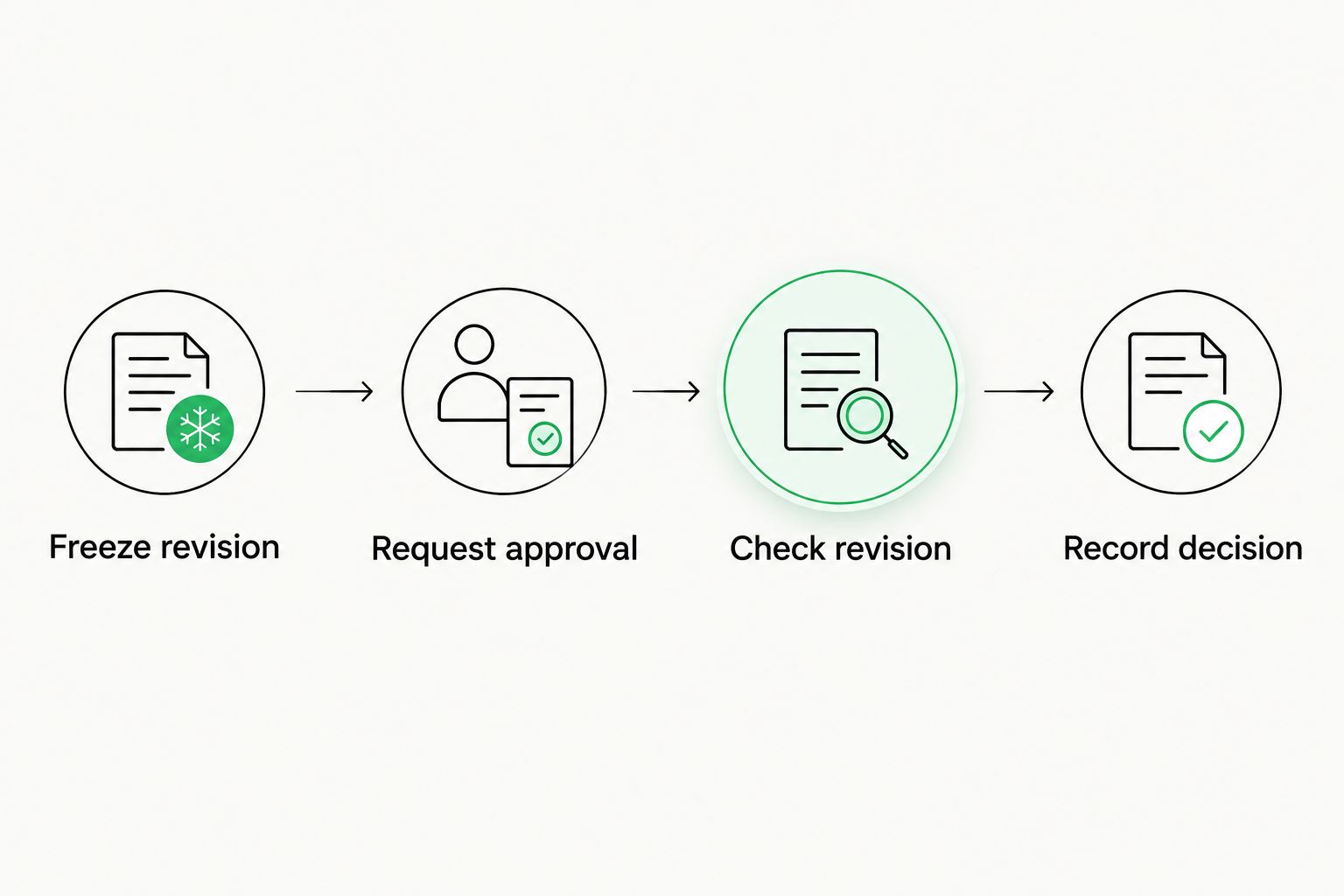
Check the revision again before recording an approval as valid.
A revised translation gets a new revision identifier. Keep the earlier approval record for traceability, but mark it Superseded rather than transferring its approval to the new content.
Trigger and approval request configuration
Create an explicit submission trigger
For the first implementation, use a manual trigger. It makes submission intentional and avoids retriggering the flow whenever an approval status changes.
- In Power Automate, select Create, then Instant cloud flow.
- Choose Manually trigger a flow and select Create.
- On the trigger, select Add an input, choose Number, and name the input Register item ID. This is your custom input label.
- Add the SharePoint Get item action. Set Site Address, List Name, and Id, using Register item ID for Id.
- Add a Condition that permits submission only when the item's Approval state is Draft. Route other states to a Terminate action.
- Add SharePoint Update item on the permitted branch and set Approval state to Pending. Preserve any required fields, including Title.
Expected result: Submitting a draft item retrieves the intended review package and marks it Pending. Submitting an already pending or completed item does not deliberately create another request.
That state check is a basic safeguard, not a transactional lock. For the pilot, assign submission to one coordinator; a production workflow with concurrent submissions needs a stronger duplicate-prevention design.
Configure the approval action
- Add the Approvals action Start and wait for an approval.
- Set Approval type to Approve/Reject - First to respond for the single-reviewer pilot.
- Set Title to include the project, target locale, and revision. Make the revision visible without opening the attachment or linked material.
- Set Assigned to to the reviewer's email address from the register.
- In Details, state the review scope: linguistic accuracy, terminology, formatting, and release suitability. Include any unresolved questions requiring an explicit decision.
- Set Item link to the Review URL and Item link description to a clear phrase such as Review submitted translation.
Open Approvals in Teams and check Received using the assigned reviewer's account. Confirm that the request identifies the locale and revision and opens the intended content.
Expected result: The reviewer receives a decision request tied to identifiable material. The flow waits for the approval response instead of treating a channel message, reaction, or read receipt as consent.
For a 2026 rollout, test with the actual reviewer identity. A successful request viewed only through the flow owner's account does not establish that the reviewer has access.
Decision validation and synchronization configuration
Check the revision before accepting the outcome
The flow must compare the submitted revision with the current register revision. Preserve the original value from the first Get item action; do not replace it with a later lookup.
- After Start and wait for an approval, add another SharePoint Get item using the same item ID.
- Add a Condition comparing the original Revision value with the newly retrieved Revision value. Also require the current Approval state to remain Pending.
- If either check fails, use Update item to record Superseded where appropriate, and stop the release path. Do not overwrite a newer review's valid status.
- If both checks pass, inspect Outcome from the approval action. Route Approve to Approved and Reject to Rejected.
- Save response comments and an approval reference from the action's outputs. For multiple responses, handle the response collection explicitly rather than assuming one comment represents everyone.
Expected result: A positive response approves only the revision that was submitted. A late response to replaced content does not authorize release.
This check depends on your revision discipline. If someone changes the linked content without changing its identifier, the flow cannot infer that the text changed. Preserve immutable review material or use a source-system version identifier that changes with the content.
Keep register sync separate from TMS writeback
A completed Teams approval is not proof that a translation-system status changed. The baseline workflow synchronizes the approval outcome into SharePoint; it does not establish an automatic connection to Wxrks.
For automated TMS writeback, use only an interface supported by the translation platform and approved by your administrator. Map the project, locale, and revision explicitly, validate authorization, and record whether the update succeeded. Never substitute a notification for a confirmed status update.
Without that integration, assign a coordinator to reconcile the register with the translation system before release. Record completion separately so Approved cannot be mistaken for Ready to publish.
Before promotion, apply your linguistic checks using the principles in how to measure translation quality accurately. Approval records accountability; quality review establishes whether the text is acceptable.
Expected result: Your release owner can distinguish a reviewer decision, a valid revision match, and a completed translation-system update.
Variant: require every reviewer to approve
Use collective approval when separate people own linguistic and business acceptance. The benefit is explicit accountability; the drawback is that completion depends on every required reviewer responding.
Approve/Reject - First to respond
- Best for: A single accountable reviewer or interchangeable reviewers
- Benefit: A response can resolve the request without waiting for everyone
- Limitation: It does not establish approval from every assigned person
Approve/Reject - Everyone must approve
- Best for: Reviews requiring agreement from all assigned reviewers
- Benefit: Requires all assigned reviewers to approve
- Limitation: A rejection ends the approval; absent responses can hold up completion
To configure the second variant, change Approval type to Approve/Reject - Everyone must approve and populate Assigned to with the required reviewers. Keep the revision validation unchanged.
Use sequential requests instead when one review must finish before another begins. For example, route linguistic corrections before business acceptance rather than asking a business owner to approve text that is still being rewritten.
Reopen review whenever the translation changes
For event-driven submission, SharePoint provides When an item is created or modified. Do not substitute it for the manual trigger without adding submission controls: your own Update item actions also modify the list.
Require a deliberate submission state, distinguish workflow updates from content revisions, and prevent duplicate requests for the same item and revision. Keep automatic resubmission out of the initial pilot until those controls are tested.
Troubleshooting
The reviewer cannot see the request in Teams
Check Assigned to against the reviewer's organizational identity. Then confirm that Approvals is accessible in Teams and inspect the approval action in the flow's run history. If the action failed, fix the connection or tenant-policy issue before resubmitting.
The approval opens a file the reviewer cannot access
Fix permissions on the review material, not just the register. Test the exact Item link as the reviewer, then confirm that it opens the submitted revision rather than a different working copy.
The register says Approved after the translation changed
Inspect the revision comparison and check whether the content identifier actually changed. Mark the old decision Superseded and submit the new revision. A status-only check cannot detect edits hidden behind an unchanged link.
Multiple approval requests appear for one revision
Inspect trigger history and submission behavior. Remove repeated manual submissions, check event-trigger conditions, and ensure register updates do not submit new requests. A production design must also handle simultaneous runs rather than relying only on a Draft check.
The approval succeeds but the register update fails
Inspect Update item permissions, required fields, and the item ID. Reconcile the existing approval before creating another request. An update failure does not mean the reviewer needs to repeat the decision.
Customize your workflow
For your 2026 production rollout, add safeguards in this order:
- Release gate: Require the correct revision, an accepted decision, and confirmed reconciliation before publishing.
- Ownership: Name the person responsible for rejected content, unanswered requests, and failed updates.
- Recovery: Document how to resume after an approval succeeds but synchronization fails.
- Data handling: Put review context in Teams without copying sensitive source material into broadly visible channels.
Wxrks translation management software covers localization workflows and quality management, but this approval design still needs clear responsibilities around it. Keep terminology review, content correction, and release authorization distinct; one Approved label should not silently stand for all three.
FAQ
How do I set up Microsoft Teams translation approvals?
Use Power Automate to create an approval request linked to a specific translation revision, then record the outcome in a shared register. Check that the revision is unchanged before accepting the decision for release.
Does a Teams approval automatically update my translation management system?
No. A Teams approval captures a decision; updating a translation management system requires a separate supported integration or a controlled reconciliation step.
Can I approve translations directly from Microsoft Teams?
Yes, reviewers can use the Approvals app in Microsoft Teams for approval requests available to their account. Confirm app access and review-material permissions before submitting production content.
Should every translation reviewer have to approve?
Require every reviewer when each person owns a necessary part of acceptance. Use First to respond only when one accountable reviewer or any interchangeable reviewer can make the decision.
What happens if someone edits a translation after approval?
Treat the changed translation as a new revision requiring review. Preserve the earlier decision for traceability, but do not transfer its approval to the edited content.
Is a Teams reaction enough to approve a translation?
No, a reaction alone does not establish a revision-bound approval record. Use an explicit request that identifies the reviewer, target locale, content revision, and decision.
What should I test before a 2026 approval workflow goes live?
Test approval, rejection, changed revisions, duplicate submissions, inaccessible review material, and failed register updates. Verify the result as the reviewer and release owner, not only as the flow owner.
One last thing
Test a stale approval before testing a successful release. Submit a request, replace the translation with a new revision, and then approve the old request. The correct result is a blocked release—not a green status attached to the wrong text.
Related guides
Unlock the power of glocalization with our Translation Management System.
Unlock the power of
with our Translation Management System.