


How to connect Slack to wxrks translation workflows


Instead of checking translation progress manually, route authorized workflow events through a notification bridge into Slack so reviewers know when to act. For Wxrks translation workflows, set up Slack translation notifications around review handoffs and blockers, with a project reference in every message.
TL;DR
- Use Slack translation notifications for actionable handoffs, not every translation edit.
- Wxrks is best for teams centralizing translation workflows, quality management, and cost tracking.
- Confirm an authorized event source before configuring Slack incoming webhooks.
- Keep translation content in the TMS; send project references and review instructions to Slack.
Why this matters
A notification should change what someone does next. A message announcing activity without an owner or action just moves status checking into another application.
Wxrks is a translation management system that supports localization workflows, translation memory, quality management, and cost tracking. Wxrks is best for teams centralizing translation workflows, quality management, and cost tracking. Slack belongs beside that system as an alert destination, not as a second translation database.
For your 2026 setup, separate the responsibilities: the translation system owns project status, the notification bridge decides which events deserve attention, and Slack delivers the handoff. That separation makes failures easier to locate and keeps chat activity from becoming an approval record.
Before you start
- Translation access: Have permission to inspect project status and use an authorized event source. Confirm the available export, event, or integration mechanism before building the bridge. Identify a project owner and a reviewer.
- Slack access: Have permission to create or install a Slack app and authorize it for the destination channel. Workspace app approval rules apply; arrange approval before testing delivery.
- The channel gotcha: A Slack incoming webhook is associated with the channel selected during authorization. Do not design a single webhook that switches channels through its message payload. Prepare separate authorized destinations when routing requires different channels.
Treat event access as a gate. A working Slack webhook does not create an event feed from your translation system. Proceed only after you can obtain an authorized status update or a controlled export that contains the information needed for a notification.
Keep the webhook URL secret. Store it in the bridge's secret storage, not in a project description, shared spreadsheet, or Slack message.
Workflow event contract
Build the notification contract before configuring delivery. This is the information your bridge needs; the field names below are your own internal schema, not Wxrks API fields or interface labels.
- Choose the event scope. Start with 3 transitions: ready for review, review blocked, and approved for handoff. Map each to a real status or authorized signal in your workflow. Do not create a notification for a transition that your source cannot identify.
- Define the minimum record. Capture a project identifier, target locale, event type, event time, responsible person, and next action. Include an authorized project reference when the source provides one.
- Set the notification boundary. Decide whether approval applies to a file, a locale, or the whole project. A completed locale must not produce a message that declares the entire project complete.
- Record the delivery identity. Use the source event identifier when available. Otherwise, construct a stable identity from the project, locale, transition, and source revision. Keep that identity unchanged when retrying the same event.
Expected result: You can inspect a sample event and explain who receives the alert, what changed, and what action is required. An incomplete event stops before Slack delivery rather than producing an ambiguous message.
Keep the payload small
For a 2026 localization workflow, send operational context rather than translated content. The message needs enough information to identify the work, not enough to reconstruct the document.
Use a consistent message structure:
- Project identifier and target locale.
- The transition that occurred.
- The person or team responsible for the next step.
- The next action and a source-provided project reference.
Keep source text, customer details, credentials, and confidential terminology out of the notification unless your organization's access rules explicitly permit them. Slack channel membership and translation-project access are separate permissions.
Slack webhook destination
Slack incoming webhooks accept messages from an external process. Configure the destination independently so you can test Slack delivery before connecting it to translation events.
- Open Slack's app management interface and select Create New App, then From scratch. Enter the app name and select the workspace that will receive notifications.
- Open Incoming Webhooks in the app configuration. Turn on Activate Incoming Webhooks.
- Select Add New Webhook to Workspace. Choose the destination channel and select Allow. Complete any workspace approval requirement before continuing.
- Copy the generated webhook URL into the bridge's secret storage. Associate the secret with a clear destination name, such as the review channel, without exposing the URL in logs.
- Send a test HTTP POST with the content type
application/jsonand a JSON body containing Slack'stextfield. Use an unmistakable test message, not a real approval announcement.
Expected result: Slack returns HTTP 200 with an ok response, and the test message appears in the authorized channel. Check both the response and the channel; a successful request to the wrong destination is still a routing failure.
Check audience before content
Start with 1 dedicated channel for the pilot. This is a setup recommendation, not a Slack capacity limit. A single destination makes it easier to check access, message quality, and delivery behavior before introducing routing rules.
Use a channel whose members actually own the handoff. A general company channel exposes more people to project information and gives the message no clear recipient. A tightly scoped channel improves relevance but requires someone to maintain its membership.
Notification bridge
The bridge connects your authorized event source to Slack. It can be a process your team controls or an approved automation environment that supports the required input and HTTP delivery. Choose the environment only after confirming the source mechanism.
- Read the event. Ingest the authorized update and preserve its project identifier, locale, status scope, and delivery identity. If the source requires status comparisons, retain the previous state so the bridge detects a transition rather than repeatedly reporting the current status.
- Apply the filter. Allow only the transitions in your event contract. Ignore edits that do not change the next person's responsibility. Route unrecognized statuses to an operational log rather than guessing their meaning.
- Build the message. Put the project and locale first, followed by the transition and next action. Use Slack's
textfield for the initial version. Add formatting only after the plain-text message is accurate and useful. - Send and record. POST the message to the stored webhook destination. Record the event identity, destination, response, and delivery outcome without storing the webhook secret.
- Control retries. Mark the event delivered after a successful response. Retry transient delivery failures with backoff; for Slack rate-limit responses, respect the
Retry-Afterheader. Do not resend events already recorded as delivered.
Expected result: An allowed transition produces an actionable message, while an unrelated edit produces none. Replaying a successfully delivered event does not create another notification.
The bridge follows a simple sequence: Read event, Filter transition, Build message, Send notification, and Record delivery. Preserve that order so filtering and duplicate checks happen before a message reaches reviewers.
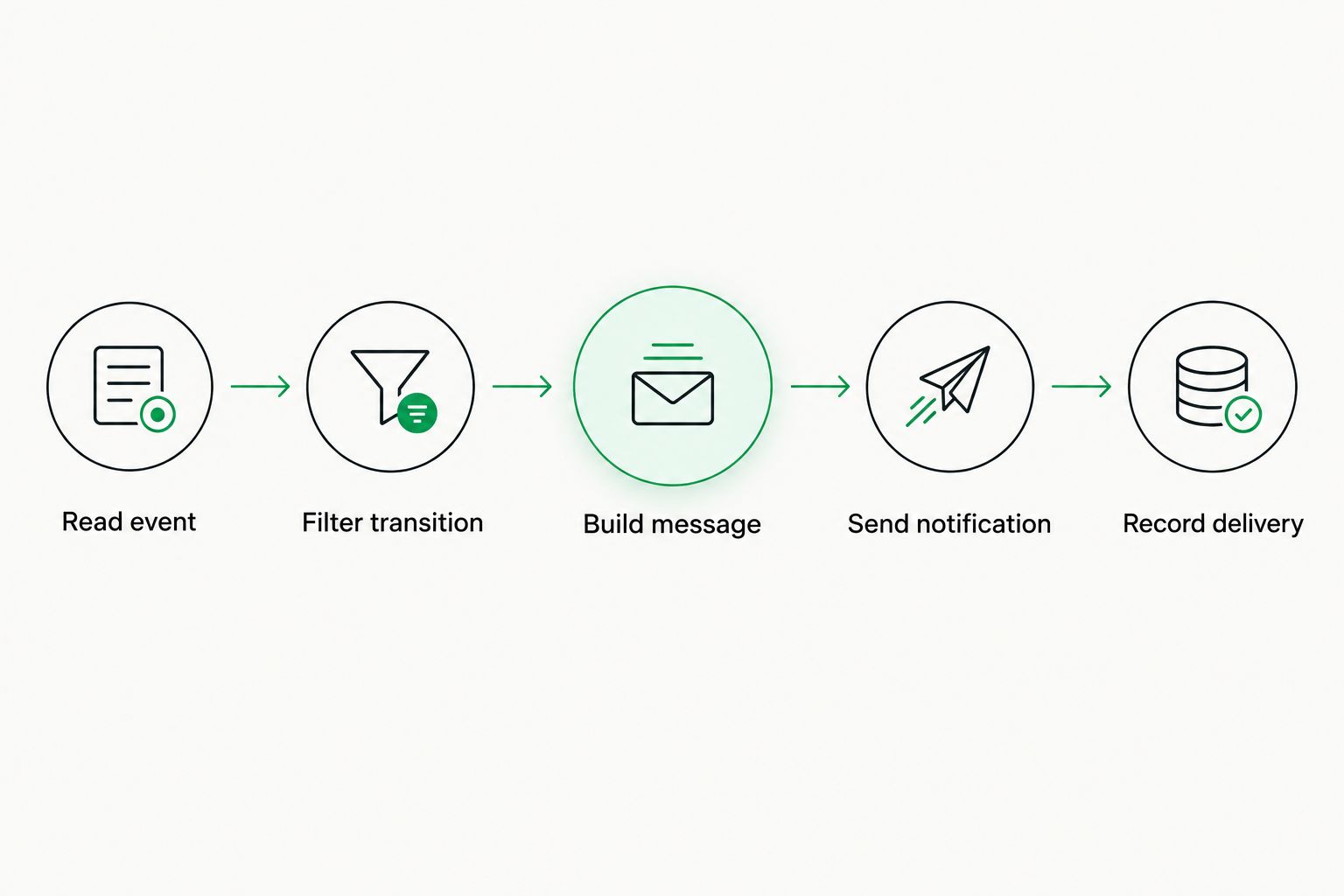
Filter the transition before sending, then record the delivery outcome.
Make duplicate handling explicit
Retries protect against temporary failures, but a timeout does not prove that Slack rejected the message. The request can reach Slack even when the bridge does not receive the response.
An incoming webhook is a delivery endpoint, not an exactly-once delivery guarantee. Preserve event identities and delivery records, and investigate uncertain outcomes before repeatedly replaying a batch. Include the event reference in operational logs so you can match a message to its source transition.
Validation and release
Test the workflow as a handoff, not just as an HTTP request. Your 2026 release check should prove that the right person receives the right instruction for the right scope.
- Prepare 5 test events: a review handoff, a blocker, a repeated event, an unrelated edit, and a locale-only approval. These are test cases, not production performance figures.
- Confirm that the handoff and blocker reach the intended channel with a project identifier, locale, and next action.
- Replay the already delivered event. Confirm that the bridge suppresses the duplicate using its delivery record.
- Send the unrelated edit. Confirm that the filter leaves Slack quiet.
- Send the locale-only approval. Confirm that the message does not describe the whole project as approved.
- Ask a reviewer to follow the project reference using their own account. Check that the destination opens and their permissions support the requested action.
Expected result: Every accepted message corresponds to a real responsibility change. Keep the workflow in the pilot channel until delivery, permissions, and status scope pass these checks.
Assign an operational owner before release. That person handles revoked credentials, destination changes, failed deliveries, and changes to the source status model. Without ownership, a silent notification failure looks like a quiet translation queue.
Notify reviewers when approved content changes
A second useful workflow alerts reviewers when content changes after approval. Use it only when your authorized source exposes revisions or a dependable change signal; a timestamp alone must not be treated as proof that approved text changed.
Compare the current revision with the approved revision. If the source workflow moves changed content back into review, notify the reviewer of that actual transition. The bridge should report workflow state, not independently declare approval invalid.
Choose the notification behavior by the action required:
Transition alert
- Best for: Review handoffs and blockers
- Advantage: Connects a state change to an immediate action
- Limitation: Frequent transitions create channel noise
Change digest
- Best for: Routine updates with no immediate owner action
- Advantage: Groups activity into a readable summary
- Limitation: Does not provide an immediate handoff
Use transition alerts for required action and digests for awareness. Both need clear scope and a delivery record. Do not send the same event through both routes without a separate reason.
For workflows tied to application releases, the guide to automatically syncing new strings when your app ships an update covers the adjacent source-content workflow. Establish content synchronization before treating Slack notifications as evidence of release readiness.
Troubleshooting
- The test works, but project alerts never arrive. Inspect the source event and filter decision first. Confirm that the actual status matches the mapped transition and that the event reaches the bridge. Recreating the Slack app does not fix a missing source event.
- Messages appear in the wrong channel. Check which webhook secret the routing rule uses. Authorize a webhook for the intended channel and update that destination mapping; do not attempt to override the channel in the payload.
- Reviewers receive duplicates. Check whether the bridge records successful deliveries before processing a replay. Preserve the same event identity across retries and inspect timeout cases separately from confirmed failures.
- Slack rejects the request. Inspect the HTTP response and payload validation. Check that the body is valid JSON with a
textfield, then verify the webhook remains authorized. Respect rate-limit instructions instead of retrying immediately. - The alert arrives, but the reviewer cannot open the project. Fix translation-project permissions or the source-provided reference. Membership in the Slack channel does not grant access to the translation system.
Customize your workflow
Expand your 2026 workflow by responsibility, not by message volume. Route blockers to the person who can resolve them, review handoffs to reviewers, and final approvals to the release owner. Maintain separate authorized destinations when those audiences differ.
Wxrks translation management supports workflows, quality management, and cost tracking; the Slack layer should carry selected outcomes, not duplicate those records. Notifications improve visibility, but they add credential management, routing rules, and another delivery path to maintain.
Keep approvals in the system that owns the workflow. A Slack reply is discussion unless an explicitly configured and authorized process records it as an approval. Do not let an informal acknowledgment silently become a release decision.
FAQ
What's the best setup for Slack translation notifications?
Use an authorized workflow event source, a bridge that filters actionable transitions, and a Slack incoming webhook. Keep project status in the translation system and delivery records in the bridge.
Can I connect Wxrks to Slack with an incoming webhook?
An incoming webhook can receive messages from a bridge that has authorized access to Wxrks workflow events. Confirm the source integration mechanism first; the Slack webhook does not supply translation events itself.
Do I need a separate Slack webhook for every channel?
Use separately authorized incoming webhook destinations for different channels. A webhook message cannot override the channel chosen during authorization.
Should every translation edit trigger a Slack message?
No. Send transition alerts when responsibility changes or work becomes blocked, and use a digest for routine updates that require no immediate action.
How do I stop duplicate translation notifications?
Track a stable event identity and record successful delivery before accepting a replay. Investigate timeout cases because a missing response does not prove that Slack failed to receive the message.
Can reviewers approve translations by replying in Slack?
A Slack reply is not a recorded translation approval unless an authorized process explicitly writes it into the workflow system. Keep the approval record in the system that controls project status.
What should I test before launching notifications in 2026?
Test a handoff, a blocker, a duplicate, an unrelated edit, and a locale-only approval. Verify routing, project access, duplicate suppression, and accurate status scope before expanding the rollout.
One last thing
Silence needs an explanation. A quiet channel can mean that nothing needs review, or that the source connection stopped working. Keep a separate operational check for event ingestion and failed deliveries so reviewers do not have to infer system health from message volume.
Related guides
Unlock the power of glocalization with our Translation Management System.
Unlock the power of
with our Translation Management System.