


Figma to translated UI strings: complete 2026 workflow


Instead of copying Figma text into translation requests and pasting revisions back into mockups, set up a Figma localization workflow that connects stable string keys, translation review, and localized design checks. Use Figma for visual context, a translation management system for language work, and your application’s resource files for the released strings.
TL;DR
- A Figma localization workflow needs stable string keys, screenshots, translation review, and localized UI checks.
- Wxrks suits teams that need translation management, translation memory, quality management, and cost tracking.
- Keep application resource files authoritative; treat localized Figma frames as previews, not release artifacts.
- Approve translations in context before exporting strings for development.
Why this matters
A translated button can read correctly and still fail in the interface. It can wrap, hide its action, or contradict the next screen. Translation approval and interface approval are separate gates.
Figma supplies the design context; your application supplies the actual rendering behavior. A good 2026 workflow preserves the connection between both, instead of turning screenshots and spreadsheets into competing sources of truth.
Wxrks is best suited to teams that need a translation management system for localization workflows, translation memory, quality management, and cost tracking. Use Wxrks for the translation-management layer, while keeping design ownership and release ownership explicit. A TMS organizes language work; it does not replace testing the interface your users receive.
Before you start
- Access and ownership: Have access to the Figma file, your TMS workspace, and the application’s source-language resource files. Assign a design owner, language reviewer, and developer responsible for the final export.
- Materials: Prepare approved source copy, target locale identifiers, terminology guidance, screenshots, and placeholder rules. Define who can change the source after translation begins.
- The gotcha: Figma text layers are not application string keys. Two identical labels can require different translations because their functions differ. Map text to stable keys before choosing an export method or automating the handoff.
Use 1 source snapshot for each translation batch. Record its date, design revision, and application revision together; a 2026 release label alone does not identify which copy the reviewer approved.
Source mapping
Start by deciding which artifact owns the source copy. For an existing application, use its resource files and reconcile Figma against them. For an unreleased design, create the key map before developers implement the strings.
Prepare the string map
- Inventory user-facing text in the screens you intend to release. Include headings, buttons, validation messages, empty states, tooltips, and accessibility text that belongs to the same feature.
- Assign each message a stable application key. Use semantic names such as
checkout.payment_failed, rather than the displayed sentence or a layer’s position. - Match each key to its Figma frame and text layer. Keep this mapping in a handoff manifest; these are your own fields, not assumed Figma or TMS interface labels.
- Add the meaning, UI role, variables, and any real layout constraints. Describe what a button does, not just where it appears.
- Freeze the source snapshot for translation. Record later source changes separately instead of silently replacing text in an active batch.
Use a manifest like this:
String key
- What to record: Stable identifier from the application
- Why it matters: Reconnects approved text to the correct message
Source text
- What to record: Exact approved wording
- Why it matters: Defines what is being translated
Locale
- What to record: Application locale identifier
- Why it matters: Keeps language and regional variants distinct
Context
- What to record: Screen, action, audience, and meaning
- Why it matters: Resolves ambiguous labels
Variables
- What to record: Exact placeholder tokens and their meanings
- Why it matters: Protects runtime substitutions
Design reference
- What to record: Frame reference and screenshot
- Why it matters: Gives reviewers visual context
Source revision
- What to record: Batch revision identifier
- Why it matters: Exposes stale translations
Expected result: Every source message has an identifiable destination and enough context for a translator to understand its function. No message depends on remembering which screenshot it came from.
Avoid splitting sentences into fragments just to match separate layers. Translators need control over sentence structure; developers need a message format that supports the language’s grammar.
Context handoff
A screenshot shows placement, but not always behavior. Pair it with a short note describing the user’s state and the action that follows. A label such as “Open” needs different guidance for opening a document and indicating an unresolved support request.
Package the design context
- Select the relevant frame in Figma. In the right sidebar, use Export, choose PNG, and export the frame. Capture the state containing the message, rather than an unrelated overview of the whole product.
- Use Share and Copy link to capture a design reference. Confirm that your language reviewer can access the file under your organization’s sharing rules.
- Associate the screenshot and design reference with the corresponding string keys in your manifest or supported project attachments. Do not rely on screenshot filenames as the only mapping.
- Document behavior that the image cannot show: whether a message is an error, whether a button submits data, and whether a variable contains a person’s name or a quantity.
- Route the approved source and context into your TMS using a supported import method. Preserve the key map outside the design file as well.
Expected result: A reviewer can identify the string, see where it appears, and explain its purpose without asking the designer to reconstruct the screen.
Choose the handoff method according to ownership, not convenience. Neither approach below eliminates the need for a key map or a release check.
File-based handoff
- Best for: Teams establishing their first repeatable workflow
- Advantage: Creates an explicit, inspectable translation batch
- Limitation: Requires deliberate reconciliation when source copy changes
Connector-based handoff
- Best for: Teams with a verified connector and assigned integration owner
- Advantage: Can reduce repeated transfer work
- Limitation: Requires checking key mapping, update behavior, permissions, and failure handling
Do not treat a connector’s successful transfer as proof that its mapping is correct. Test a source edit, a deleted string, and a placeholder-bearing message before entrusting a release to it.
Translation review
Wxrks provides translation workflow, translation memory, quality management, and cost tracking capabilities. Those capabilities support the language stage; your project still needs explicit rules for terminology, approval, and source changes.
Configure the language handoff
- Set the source language and target locales for the project. Match locale identifiers to those used by the application, rather than inventing a parallel naming system.
- Provide approved terminology and style guidance. Explain product-specific meanings and identify text that must remain unchanged.
- Supply relevant translation memory with its origin and intended scope. Review suggested matches against the current screen; repeated wording does not guarantee repeated meaning.
- Assign translation and language review responsibilities. Configure the project so unfinished or unreviewed translations cannot be mistaken for release-ready strings.
- Check variables, markup, punctuation, terminology, and meaning before approving the batch. Resolve questions against the recorded source revision.
Expected result: Approved translations remain attached to their source keys, target locales, and review decisions. The export represents a reviewed batch, not a collection of the latest edits.
For your 2026 release checklist, define 2 approval gates: language approval and interface approval. The first checks meaning; the second checks how that meaning works on screen.
Translation memory is a starting point, not an approval decision. A previously accepted phrase can be wrong in a different interaction. Keep reviewers accountable for the current context instead of approving matches solely because they already exist.
Localized validation
Return translations to the design using the key map, not by matching source text. Matching text alone breaks when the same word appears in unrelated controls or when the source has changed during review.
Validate the design and release files
- Create localized copies of the relevant Figma frames while preserving the approved source design. Name each copy with its locale and batch revision.
- Insert approved translations into the mapped layers. Preserve variables as tokens in the translation record; use representative values only for previewing the interface.
- Check wrapping, truncation, component sizing, reading order, and alignment. Inspect error states and empty states as carefully as the default screen.
- Send linguistic problems back for language review and layout problems back to design. Do not shorten approved translations directly in a mockup without updating the translation record.
- Export the approved strings into the application’s required resource format through a supported process. Validate syntax, key coverage, variables, and message-format rules.
- Test the built interface. Confirm that the application displays the approved locale strings and that the localized interaction still works.
Expected result: The localized mockup and the application use the same approved messages. Design adjustments remain separate from translation changes, and both receive the appropriate review.
Check these 3 layers before release: the translation record, the Figma preview, and the built interface. Agreement between the first two does not prove the third is correct.
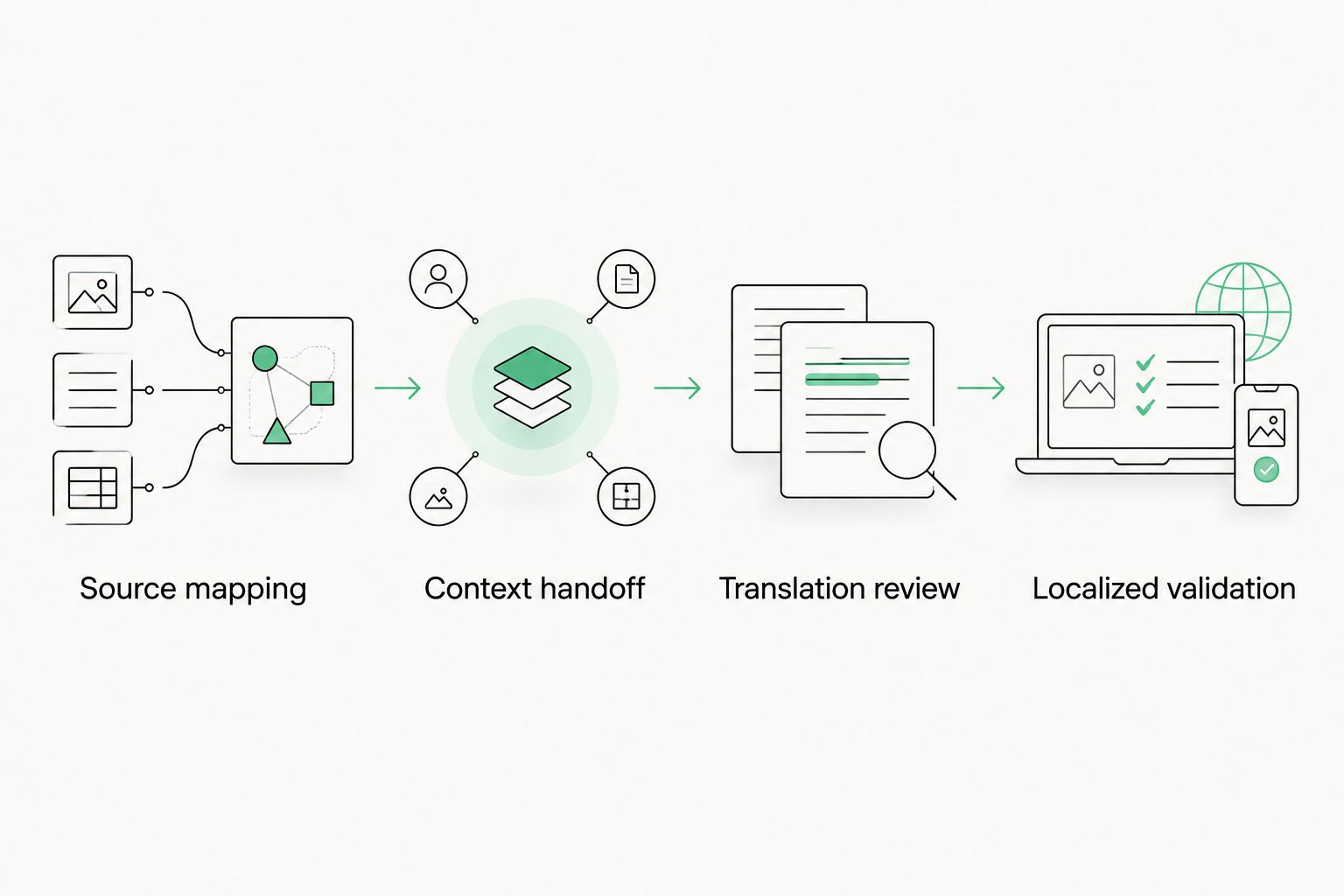
Stable keys connect the language review to the interface that ships.
A 2026 QA record should identify the locale, source revision, translation revision, and application build. That makes a mismatch traceable instead of turning it into another round of screenshot comparisons.
Whenever source strings change
An initial localization batch and an update batch share the same approval gates. The update workflow adds change detection: identify what changed before deciding what needs translation again.
- Compare the new source snapshot with the previous approved snapshot by string key.
- Separate added, edited, and removed messages. Include context changes even when the visible source wording stays the same.
- Route added and edited messages back through translation review. Retain unchanged approved translations only when their meaning and context remain unchanged.
- Keep removed messages out of the release export. Check references before deleting application keys.
- Revalidate affected screens and dependent states in Figma and the application.
Best for frequent product releases: Use key-based change detection with explicit review status. It narrows the update scope, but it still needs an owner to handle deletions, context changes, and conflicting edits.
Automate transfer after this update path works reliably. An automated workflow should report failed transfers and stale approvals rather than quietly exporting whatever text happens to be present.
Troubleshooting
A translation appears in the wrong control
Fix the mapping, not the translation. Check whether the handoff matched identical source text instead of stable keys. Give unrelated messages separate keys and resend their individual context for review.
Reviewers cannot open the design reference
Check file access using the reviewer’s account. If organizational permissions prevent sharing, provide an approved screenshot and written context through the project’s permitted channel. Do not broaden access to confidential designs just to make a link work.
Variables render incorrectly in the application
Compare approved translations with the source variable tokens and the application’s message syntax. Restore altered tokens through the language workflow, then validate the resource file and test substitution in the built interface.
Text fits in Figma but clips in production
Check the application’s font, container dimensions, wrapping rules, and actual runtime values. Fix the responsible layout or message issue; reducing font size across the interface is not a substitute for finding the cause.
An approved translation uses outdated source copy
Compare the translation’s recorded source revision with the current batch. Reopen the affected message for review and prevent its older approval from satisfying the new release gate. Include context-only edits in that check.
Customize your workflow
Once the handoff works, expand it to additional screen states and locales. Add terminology decisions and recurring review issues to the project guidance so the next batch arrives with better context.
For repository-owned source strings, connect the design process to the development handoff described in GitHub to Wxrks for continuous localization. Keep the repository authoritative for runtime resources and Figma authoritative for design intent.
For the next 2026 release, choose one bounded feature as the pilot. Measure your actual corrections and handoff failures before expanding automation; a transferred string is not necessarily an approved string.
FAQ
What is a Figma localization workflow?
A Figma localization workflow maps design text to stable application keys, supplies context for translation, reviews localized designs, and delivers approved strings to development. Figma provides visual context; application resource files provide the runtime messages.
Can I translate a Figma design without a plugin?
Yes, you can use a file-based handoff with a key map, screenshots, and reviewed translations. Apply approved text to localized frame copies, then verify the same messages in the built application.
Do I need a native Figma integration to use Wxrks?
A native Figma integration is not required for the workflow described here. Keep the design-to-key mapping explicit and use a supported transfer method for the translation-management stage.
Should Figma or my repository own the source strings?
For an existing application, keep runtime source strings in its resource files and reconcile the design against them. For a new feature, assign stable keys before implementation and establish ownership before translation starts.
How do I handle identical labels with different meanings?
Give labels separate keys when their meanings or functions differ. Supply each message with its own screen context so translators do not have to guess from the source wording alone.
How do I check right-to-left interfaces?
Review reading order, alignment, directional controls, mixed-direction text, and runtime behavior in the target locale. A localized Figma preview helps design review, but the built interface still needs testing.
When should a source change trigger translation review?
Reopen review when wording, meaning, variables, or relevant context changes. Unchanged text can require a new translation when the interaction around it changes.
One last thing
A context change is a localization change. Moving an unchanged label from a navigation item to a destructive action can invalidate its translation without changing a single source character. Track context alongside wording, and your update workflow will catch problems that a text-only comparison misses.
Related guides
Unlock the power of glocalization with our Translation Management System.
Unlock the power of
with our Translation Management System.