Free-Flow
Free-Flow is the wxrks editor for running text, not segments. Write or paste a document, choose a Sous-Chef profile and a language, and translate, proofread or rewrite the whole text or any passage you select. Give it a voice, or turn a video into subtitles and a voice-over.
 Named a Leader on G2for Translation Management Systems
Independently audited
Meet Free-Flow, the wxrks editor for running text.
Das ist Free-Flow, der wxrks-Editor für fließenden Text.
Write or paste a document, choose a Sous-Chef profile and a language, and translate, proofread or rewrite the whole text or any passage you select.
Schreiben Sie ein Dokument oder fügen Sie eines ein, wählen Sie ein Sous-Chef-Profil und eine Sprache, und übersetzen, korrigieren oder formulieren Sie den ganzen Text oder jede markierte Passage neu.
Give it a voice, or turn a video into subtitles and a voice-over.
Lassen Sie den Text vorlesen, oder machen Sie aus einem Video Untertitel und ein Voice-over.
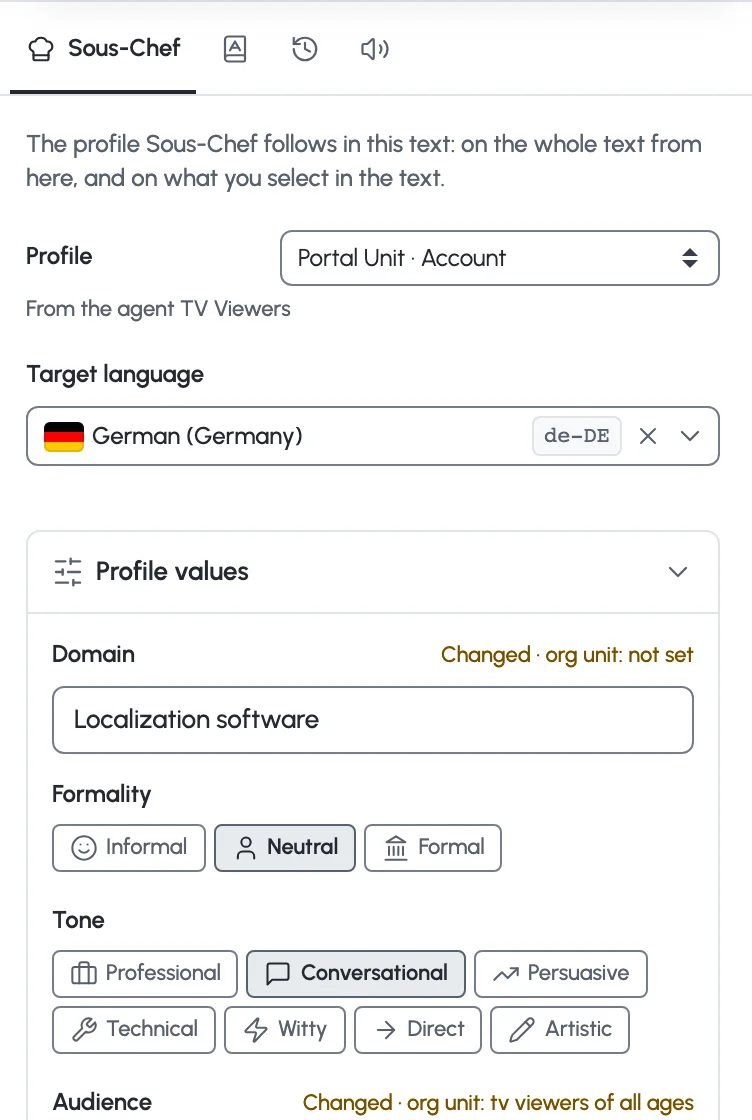 Context Sensitive translate
Global teams run translation on wxrks






What teams ask us
Marketing teams, creative agencies and localization teams describe the same situations on our calls. The text is the whole piece, not a list of sentences.
A campaign, a tagline, a launch email. One language drops a section, another moves it, and the client wants three options with a back translation. So the work leaves the platform for Word and the design file.
Sentence by sentence, a reviewer cannot tell what the text is about. So the review goes back to Word with track changes, and the first question about any AI is whether it saw the whole file.
Sales people, engineers, product experts, a marketer on a deadline. Translation is not their job, so they paste the text into a chat window. They want one simple place that follows the glossary and keeps the text in the company.
The subtitles come from one tool, the timing from another, the voice-over from a third, and nobody knows where the source files went. Every hop is by hand, and each tool bills by the minute.
How it works
Free-Flow sits in the sidebar of your wxrks account, under Tools. Start a text, or subtitle a video.
Start a new text, or import a file. Headings, lists and quotes stay as they are, and the language is detected.
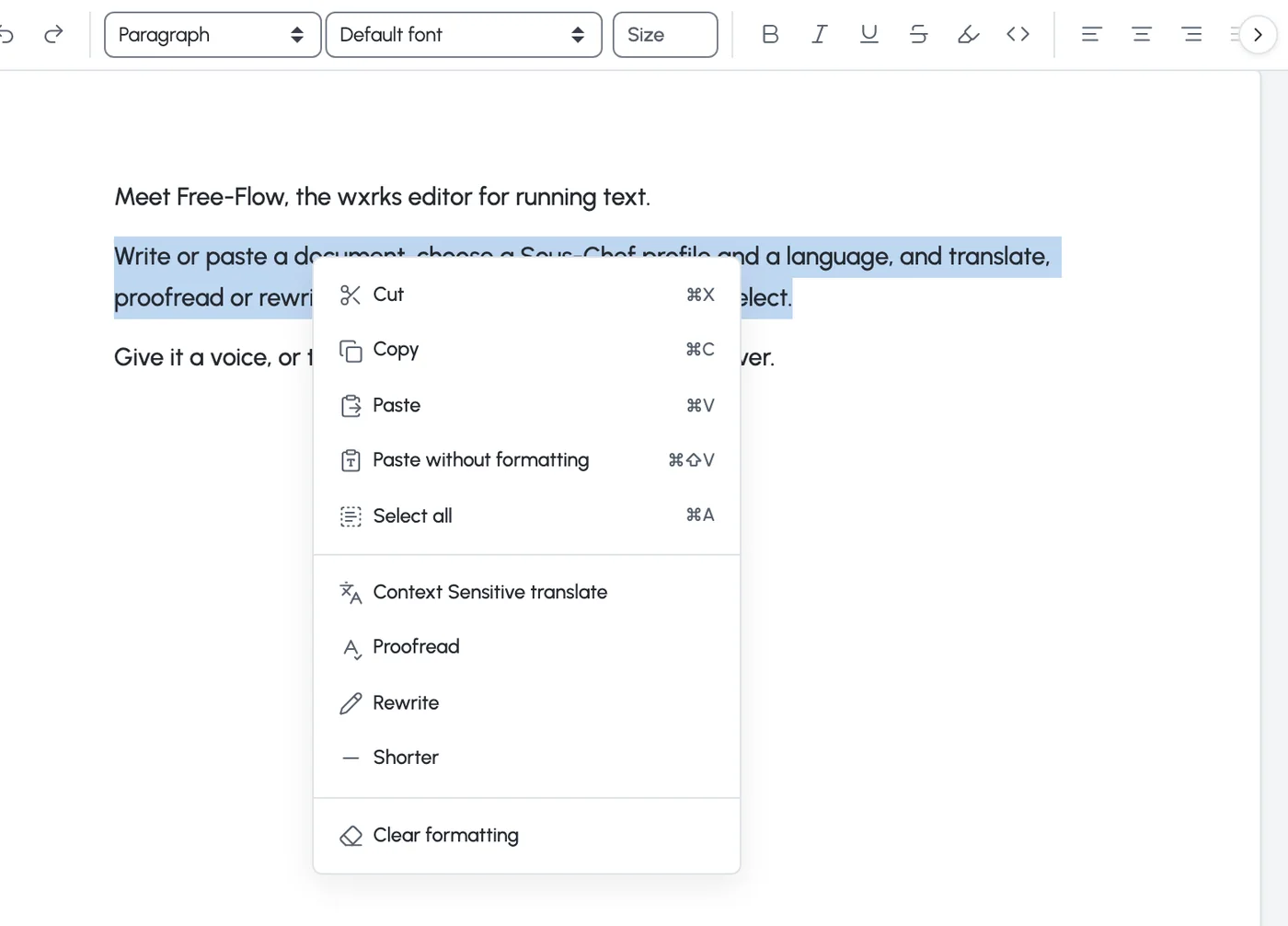
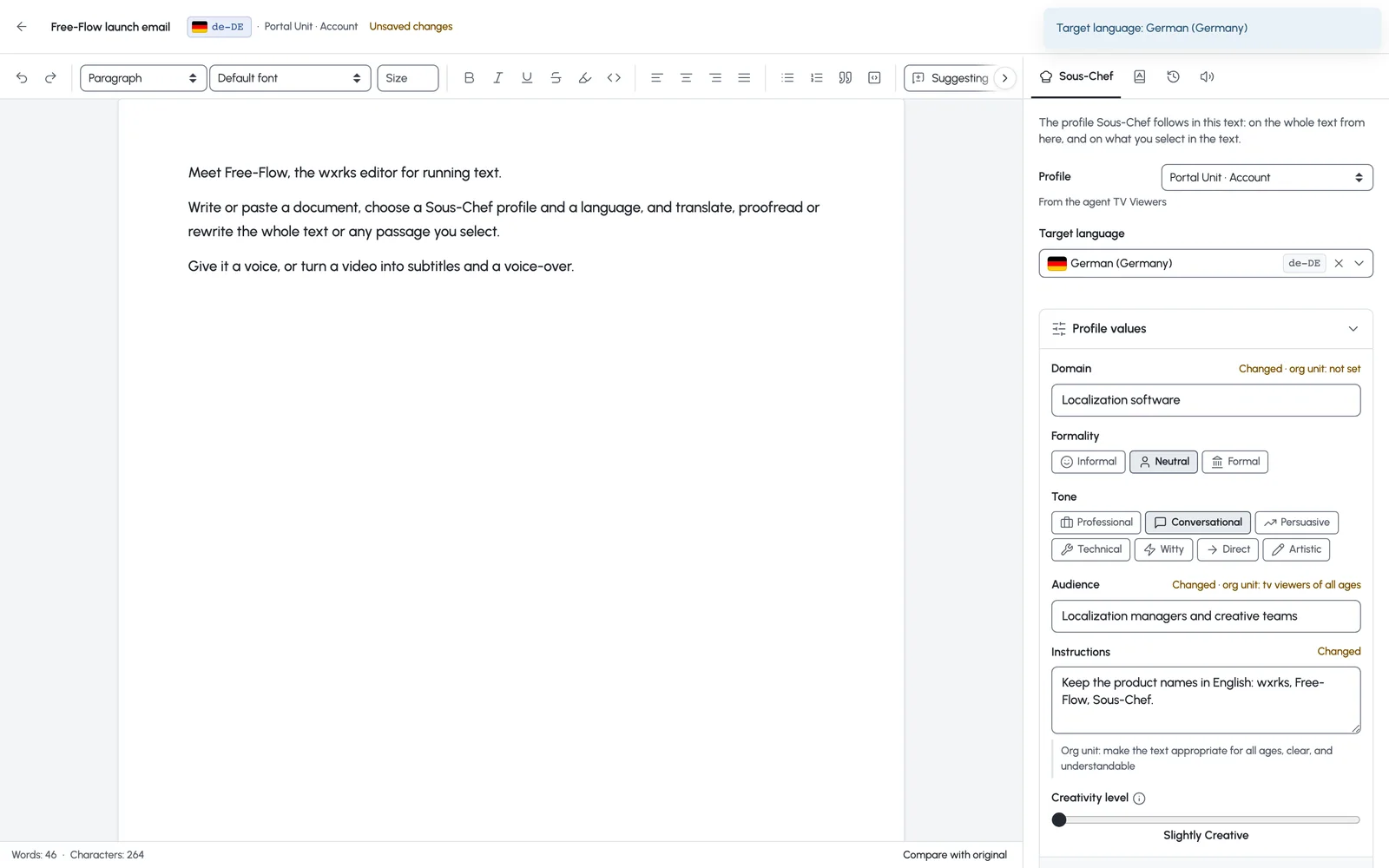
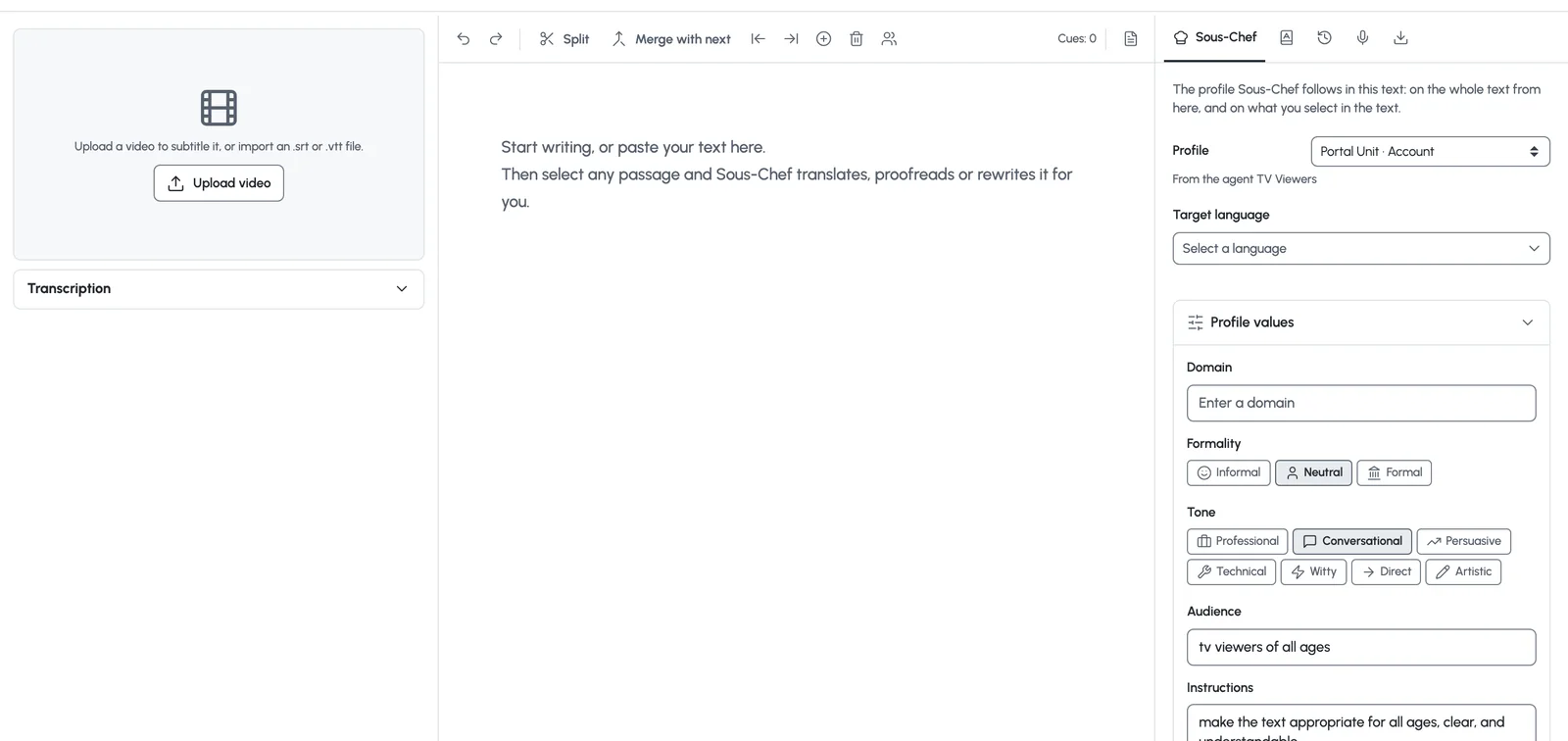
Pick a Sous-Chef profile, or set the domain, formality, tone, audience and instructions for this text, and choose the target language.
Run it on the whole text, or select a passage and right-click. Every change arrives as a suggestion you can see, compare with the original and undo.
Any passage
The text stays one piece. You decide how much of it the AI touches.
Sous-Chef
Sous-Chef is the wxrks agent for tone and style. In Free-Flow its profile follows the whole text and every passage you select.
In control
Nothing is rewritten behind your back. The AI proposes, you keep what reads right.
Shows what the AI changed, in place. Switch to Editing to write yourself.
Puts the text next to what you started with, so a rewrite never loses the source.
Lists what was translated, proofread or rewritten in this session, and what is still waiting in the text.
Versions
One source, as many versions as the campaign needs, in one document.
Voice
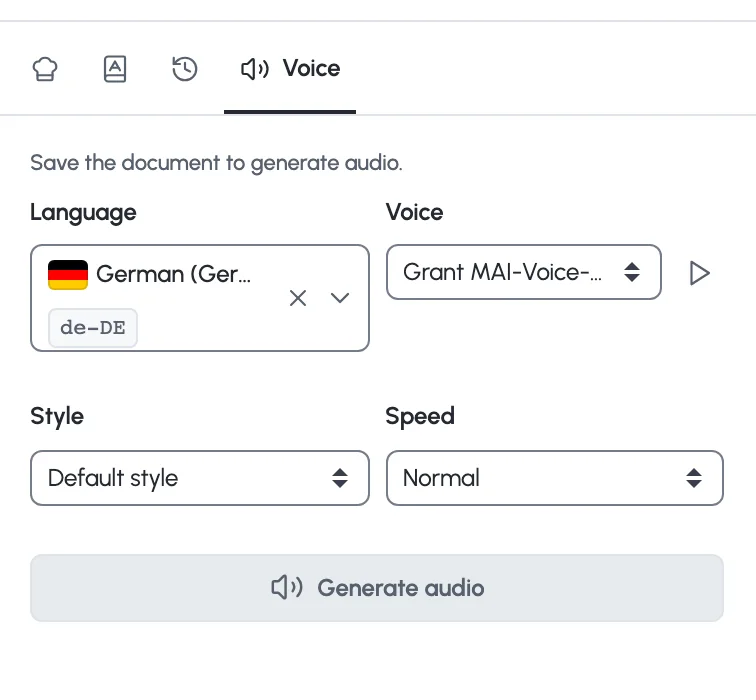
The same text, read aloud in the language you chose.
Subtitles
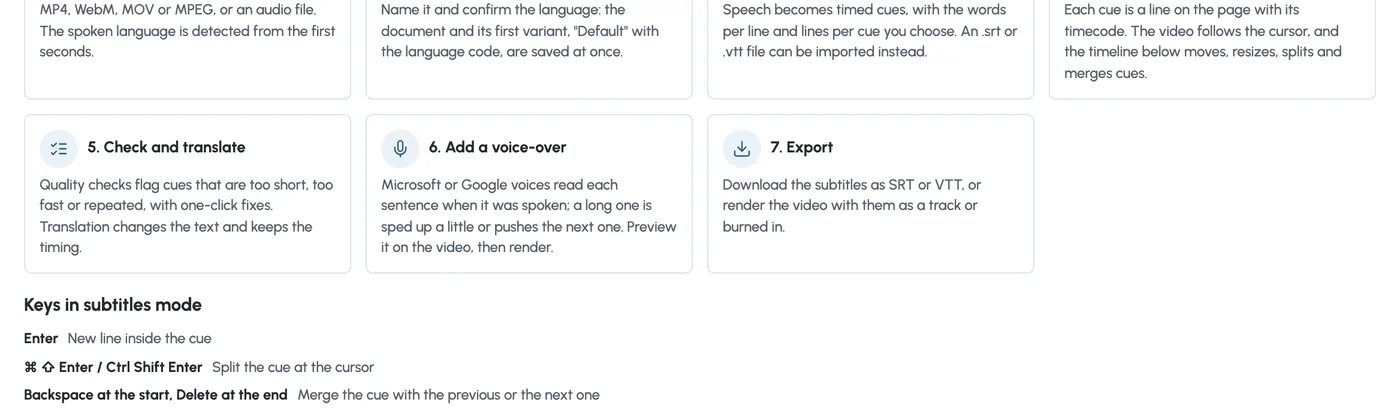
Subtitles mode turns a video into timed cues you edit like text, then translate, voice and export.
Where it lives
Tools, then Free-Flow. Two buttons: New text and Subtitle a video. The Portal links to it too.
Import a text file, or paste. Headings, lists, quotes, highlights and code blocks are kept, and exported to PDF.
Hides everything but the text while you write.
Each operation sends a defined set of content and nothing else, and any of them can run on your own engine.

Questions
No. Free-Flow is for text that is written and adapted as a whole, such as campaigns, emails, pages and scripts. Software strings, documentation and anything that must be predictable stay in the segment editor, with the memory and the review steps you already run.
Yes. A translation starts from your approved translations and glossary terms, and the Glossary tab shows the terms of the text you are working on.
Each operation sends a defined set of content and nothing else, listed operation by operation in the help center. Your account can route any of them to your own engine.
Yes. Suggesting mode shows every change in place, Compare with original shows the text next to what you started with, and History lists each action.
Yes. Select it and right-click. Translate, Proofread, Rewrite and Shorter work on the selection only.
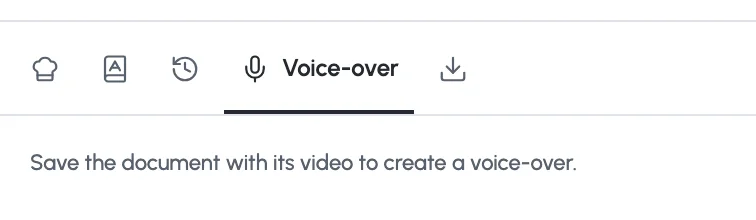
Microsoft and Google voices, in the languages they cover, at four speeds. A video can have one voice per speaker.
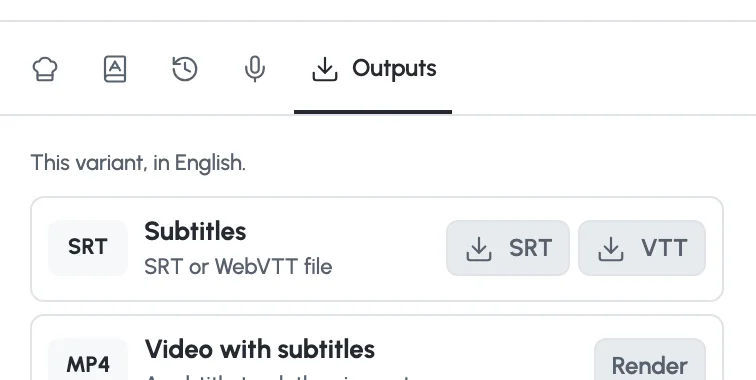
The text as a PDF, the audio as a file, and the subtitles as SRT or VTT, or the video with the subtitles as a track or burned in.
No. No customer content trains any model, and it is written into the data processing agreement.
By the volume you process, in one annual subscription. Your team, requesters and suppliers are not charged per seat. In enterprise plans, implementation, onboarding, training and asset import are included.
Book a demo
A 15-minute call first. Then a 30-day proof of concept on your real content, at no cost.
Named a Leader on G2for Translation Management Systems
Independently audited (SOC 2 Type 2)